Build an AI Image Recognition app using Gemini on Agent Platform - bb-ide-genai-001

A passionate full-stack developer from @ePlus.DEV
Overview
This lab demonstrates how Gemini can interpret what is in an image and provide a description quickly. During the exercise, you will provide the following image as input and ask Gemini is: "What is shown in this image?".
Labs are timed and cannot be paused. The timer starts when you click Start.
The included IDE is preconfigured with the gcloud SDK.
Use the terminal to execute commands and then click Check my progress to verify your work.
Objective
Generative AI on Agent Platform (also known as genAI or gen AI) gives you access to Google's large generative AI models so you can test, tune, and deploy them for use in your AI-powered applications. In this lab, you will:
Connect to Agent Platform (Google Cloud AI platform): Learn how to establish a connection to Google's AI services using the Agent Platform SDK.
Load a pre-trained generative AI model - Gemini: Discover how to use a powerful, pre-trained AI model without building one from scratch.
Send image + text questions to the AI model: Understand how to provide input for the AI to process.
Extract text-based answers from the AI: Learn to handle and interpret the text responses generated by the AI model.
Understand the basics of building AI applications: Gain insights into the core concepts of integrating AI into software projects.
Working with Agent Platform Python SDK
After starting the lab, you will get a split pane view consisting of the Code Editor and the lab instructions. Follow these steps to interact with the generative AI APIs using the Agent Platform Python SDK.
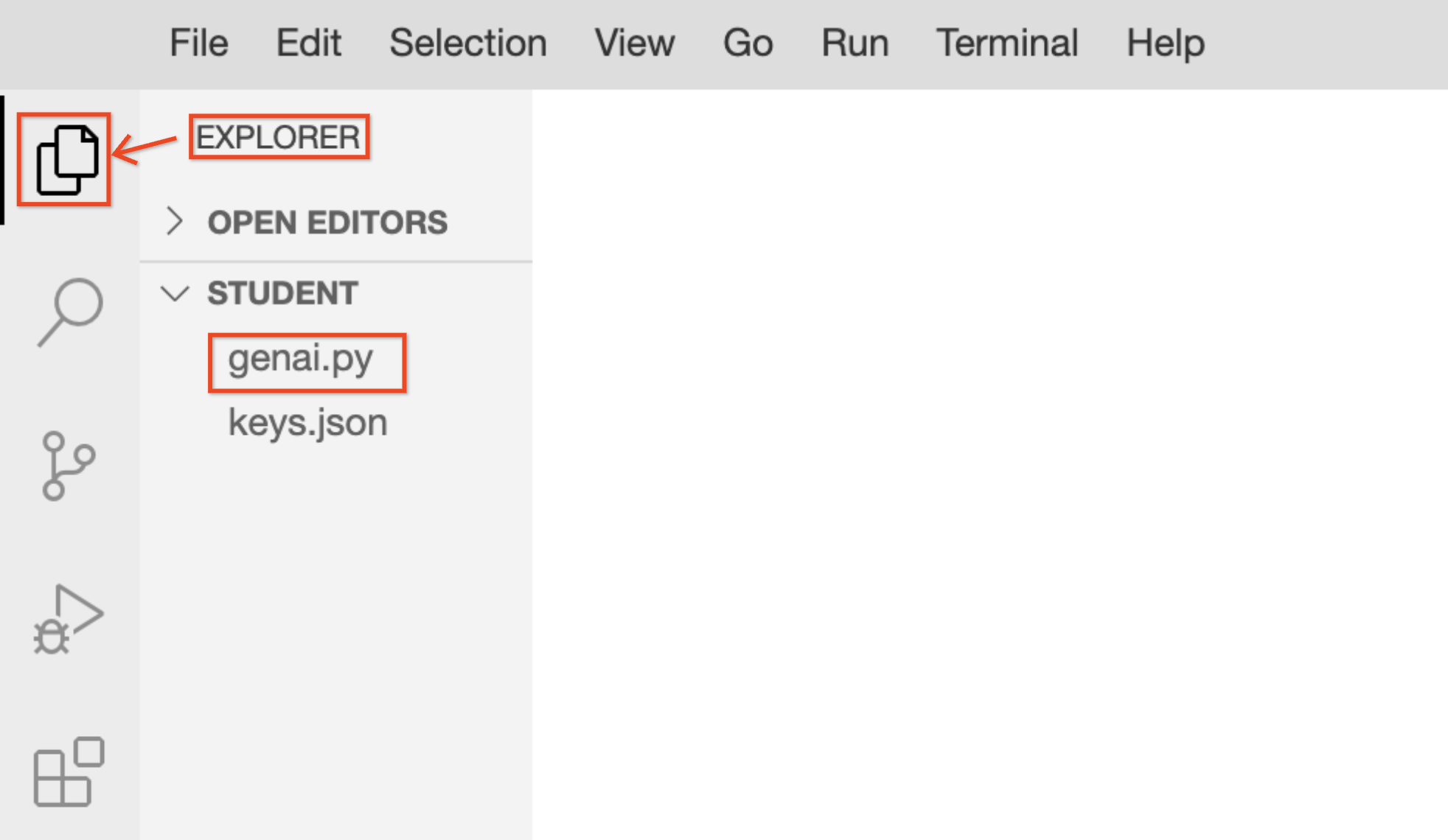
Click the Explorer icon to access the pre-created file.
Select genai.py to open the file in the Code Editor.
Copy and paste the provided code snippet into your file. This code initializes the Agent Platform client and sends a multimodal request (image and text) to the Gemini model:
import time
from google import genai
from google.genai.types import HttpOptions, Part
from google.genai.errors import ClientError

client = genai.Client(
        http_options=HttpOptions(api_version="v1"),
        enterprise=True,
        project='qwiklabs-gcp-04-d2007dda13b3',
        location='global'
        )

# Configuration for retry logic
MAX_RETRIES = 3
INITIAL_DELAY = 2

for attempt in range(MAX_RETRIES + 1):
  try:
    response = client.models.generate_content(
      model="gemini-3.5-flash",
      contents=[
        "What is shown in this image?",
        Part.from_uri(
          file_uri="https://storage.googleapis.com/cloud-samples-data/generative-ai/image/scones.jpg",
          mime_type="image/jpeg",
        ),
      ],
    )

    # Save output to a txt file
    with open("output.txt", "w", encoding="utf-8") as file:
      file.write(response.text)
    print(response.text)
    break
  except ClientError as e:
      if "429" in str(e) or "RESOURCE_EXHAUSTED" in str(e):
        if attempt < MAX_RETRIES:
          delay = INITIAL_DELAY * (2 ** attempt)
          print(f"Warning: Resource exhausted (429). Retrying in {delay} seconds... (Attempt {attempt + 1}/{MAX_RETRIES})")
          time.sleep(delay)
        else:
          print("We are experiencing high demand right now. To stay on track, please skip this step for now and continue with the next part of the lab. You can try this prompt again in a few minutes.")
  finally:
    # Verify if the process concluded without a response object being created
    if 'response' not in locals() and attempt == MAX_RETRIES:
      print("Final Status: Process terminated unsuccessfully.")
Click File > Save to store your script.
Run the following command in the terminal to set the environment variables that configure the SDK to use your specific Google Cloud project and region:
export GOOGLE_CLOUD_PROJECT='qwiklabs-gcp-04-d2007dda13b3'
export GOOGLE_CLOUD_LOCATION='global'
export GOOGLE_GENAI_USE_ENTERPRISE=True
Execute the Python file in the terminal to send the request and view the model's analysis of the image:
python3 genai.py
Sample output:
<img src="https://cdn.qwiklabs.com/lVkOWPsoENuttAR1nC8CpWDoe0guc3cIWctU%2BuIbUR0%3D" alt="Success message" style="display: block; margin: 0 auto;" />

7.  In the **Explorer**, click **output.txt** to view the generated text.


<img src="https://cdn.qwiklabs.com/%2F08TZ6wERJk2UQFLAYM7oFP337QLA0hknF8leAu89yM%3D" alt="Success Image" style="display: block; margin: 0 auto;" />

## **Code Explanation**

*   The code snippet is loading a pre-trained AI model called Gemini (`gemini-3.5-flash`) on Agent Platform.

*   The code calls the `generate_content` method of the loaded Gemini model.

*   The input to the method is an image URI and a prompt containing a question about the image.

*   The code uses Gemini's ability to understand images and text together. It uses the text provided in the prompt to describe the contents of the image.


Click **Check my progress** to verify the objective.
Solution of Lab
Quick

curl -LO raw.githubusercontent.com/ePlus-DEV/storage/refs/heads/main/labs/build-an-ai-image-recognition-app-using-gemini-on-agent-platform/lab.sh
source lab.sh