Configuring IAM Permissions with gcloud - GSP647

A passionate full-stack developer from @ePlus.DEV
Overview
This lab looks at three common areas to understand with regards to IAM and gcloud:
the configuration of the gcloud environment
the use of multiple gcloud configurations
the use of services accounts
In this lab you use the gcloud CLI tool to set up and configure command features of Cloud Identity and Access Management (IAM).
What you'll learn
In this lab, you do the following:
Review IAM and using the
gcloudclientCreate and switch between multiple IAM configurations
Identify and assign correct IAM permissions
Create and use a service account
Starting environment
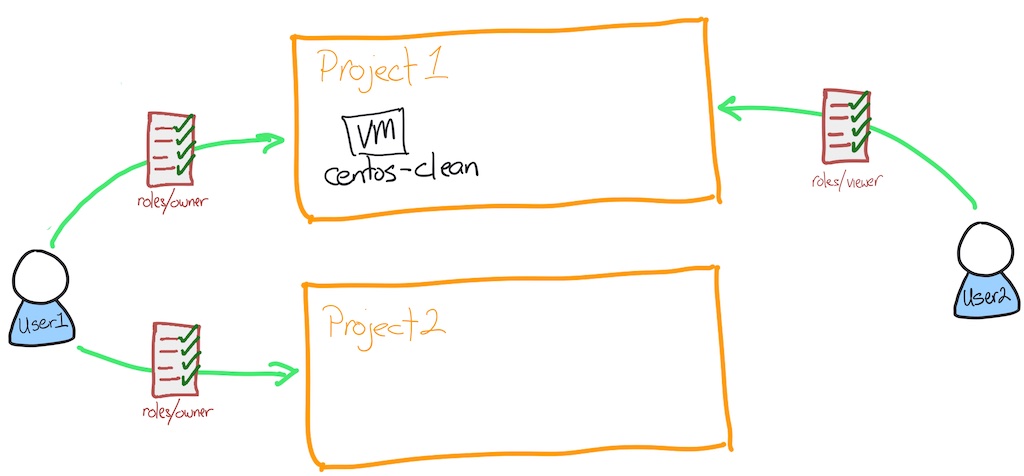
You start with two user accounts and two projects;
user1is the "owner" of both projectsuser2is the "viewer" of only the first project.
There is a Linux virtual machine (vm) running in the first project.
What is IAM?
Google Cloud offers Cloud Identity and Access Management (IAM), which lets you manage access control by defining who (identity) has what access (role) for which resource.
In IAM, permission to access a resource isn't granted directly to the end user. Instead, permissions are grouped into roles, and roles are granted to authenticated principals. (In the past, IAM often referred to principals as members. Some APIs still use this term.)
Identities
In Cloud IAM, you grant access to principals. Principals can be of the following types:
Google Account
Service account
Google group
Google Workspace account
Cloud Identity domain
All authenticated users
All users
Learn more about these identity types from the Concepts related to identity Guide.
In this lab, you use Google accounts, service accounts, and Cloud Identity domain groups.
Roles
A role is a collection of permissions. You cannot assign a permission to the user directly; instead you grant them a role. When you grant a role to a user, you grant them all the permissions that the role contains.
Learn more about roles from the Roles Guide.
What is gcloud?
The gcloud CLI is a part of the Cloud SDK. You must download and install the SDK on your system and initialize it before you can use the gcloud command-line tool. You can use this tool to perform many common platform tasks either from the command-line or in scripts and other automations.
Learn more about gcloud from the gcloud CLI overview Guide.
Setup and requirements
Before you click the Start Lab button
Read these instructions. Labs are timed and you cannot pause them. The timer, which starts when you click Start Lab, shows how long Google Cloud resources will be made available to you.
This hands-on lab lets you do the lab activities yourself in a real cloud environment, not in a simulation or demo environment. It does so by giving you new, temporary credentials that you use to sign in and access Google Cloud for the duration of the lab.
To complete this lab, you need:
- Access to a standard internet browser (Chrome browser recommended).
Note: Use an Incognito or private browser window to run this lab. This prevents any conflicts between your personal account and the Student account, which may cause extra charges incurred to your personal account.
- Time to complete the lab---remember, once you start, you cannot pause a lab.
Note: If you already have your own personal Google Cloud account or project, do not use it for this lab to avoid extra charges to your account.
Note: For this lab, log in using Username 1.
How to start your lab and sign in to the Google Cloud console
Click the Start Lab button. If you need to pay for the lab, a pop-up opens for you to select your payment method. On the left is the Lab Details panel with the following:
The Open Google Cloud console button
Time remaining
The temporary credentials that you must use for this lab
Other information, if needed, to step through this lab
Click Open Google Cloud console (or right-click and select Open Link in Incognito Window if you are running the Chrome browser).
The lab spins up resources, and then opens another tab that shows the Sign in page.
Tip: Arrange the tabs in separate windows, side-by-side.
Note: If you see the Choose an account dialog, click Use Another Account.
If necessary, copy the Username below and paste it into the Sign in dialog.
student-00-9ac661da4d7c@qwiklabs.netYou can also find the Username in the Lab Details panel.
Click Next.
Copy the Password below and paste it into the Welcome dialog.
AM45ah6nG5JFYou can also find the Password in the Lab Details panel.
Click Next.
Important: You must use the credentials the lab provides you. Do not use your Google Cloud account credentials.
Note: Using your own Google Cloud account for this lab may incur extra charges.
Click through the subsequent pages:
Accept the terms and conditions.
Do not add recovery options or two-factor authentication (because this is a temporary account).
Do not sign up for free trials.
After a few moments, the Google Cloud console opens in this tab.
Note: To view a menu with a list of Google Cloud products and services, click the Navigation menu at the top-left.

Task 1. Configure the gcloud environment
This lab already has a Compute Engine instance called centos-clean that simulates an environment that doesn't have gcloud installed. You connect to this instance using the Google Cloud console.
Open the list of compute instances by going to Navigation Menu > Compute Engine > VM instances.
On the line with the compute instance named centos-clean, click SSH.
Note: About Compute Engine instances: There are Windows and Linux types of instances. In this lab you use the Linux instance type. You can easily connect to Linux instances using the Secure Shell (SSH) client via the web browser.
You are automatically connected to the instance. Google Cloud manages the authentication keys for you, keeping them safe and available for only those you allow access.
- First test, confirm that
gcloudis successfully installed by checking the version. Inside the SSH session run:
gcloud --version
Create a new instance and updating the default zone
After verification that gcloud command-line tool is installed , make some changes by creating a compute instance.
- First, authenticate in gcloud. Inside the SSH session, run:
gcloud auth login
Press ENTER when you see the prompt Do you want to continue (Y/n)?
Navigate to the link displayed in a new tab.
Click on your active username (
student-00-9ac661da4d7c@qwiklabs.net), and click Allow.When you see the prompt Enter the following verification code in gcloud CLI on the machine you want to log into, click on the copy button then go back to the SSH session, and paste the code into the prompt Enter authorization code:.
In the SSH session, set the region and zone:
gcloud config set compute/region us-west1
gcloud config set compute/zone us-west1-a
- Inside the SSH session run:
gcloud compute instances create lab-1 --zone us-west1-a --machine-type=e2-standard-2
If you have correctly set everything up, the command creates an instance.
But what size? And where? What image is used?
There are a number of defaults the service uses. Some can be controlled in the gcloud configuration. For example, the location of the instance is controlled by the zone setting.
Create an instance with name as lab-1 in Project 1
Check my progress
- Check your current gcloud configuration. Inside the SSH session run:
gcloud config list
You now see a compute section, a core section, and an active configuration. You can change each of these, but for this lab you'll only change the zone. Look at the zone your VM was created in.
- Now list all the zones available to use by running the following inside the SSH session run:
gcloud compute zones list
Identify one of the other zones in the same region as you. For example, if your current zone is
us-west2-a, you could selectus-west2-b.Change your current zone for another zone in the same region. Inside the SSH session run the following, replacing
ZONEwith the zone you selected:
gcloud config set compute/zone ZONE
- Verify the zone change was made. Inside the SSH session run:
gcloud config list
You see the stated zone reflects the change you made.
You can change other settings using the gcloud config set command. Those changes are permanent; they are written to your home directory.
The default configuration is stored in ~/.config/gcloud/configurations/config_default.
If you want to use a zone other than the default zone when creating an instance, you can use --zone switch. For example, gcloud compute instances create lab-1 --zone us-central1-f
Update the default zone
Check my progress
- Verify the zone was written to the configuration file. Inside the SSH session run:
cat ~/.config/gcloud/configurations/config_default
You can see the configuration is just stored as text and can be backed up or copied.
Task 2. Create and switch between multiple IAM configurations
You have now set up one account. In situations when you need to work on different teams or access different accounts, you can also manage that with gcloud config.
In your next task you learn how to create a second configuration and switch between both of them.
Create a new IAM configuration
In this lab you have a second Google account you can log on with. This account has read-only (viewer) access to the first project. You create a new configuration for that user.
- Start a new
gcloudconfiguration for the second user account. Inside the SSH session run:
gcloud init --no-launch-browser
Select option 2, Create a new configuration.
configuration name: Type user2.
Log in with a new account: select option 3 - you're logging in with the other provided user name.
Press ENTER when you see the prompt Do you want to continue (Y/n)?
Navigate to the link displayed in a new tab.
Click Use another account
Copy the second user account (
student-03-fa874093f278@qwiklabs.net), and paste into the email or phone prompt.Copy the same password that you started the lab with, and paste into the enter your password prompt.
Click I understand.
Click Allow.
You are accepting that the Cloud SDK has the same access as your Google account.
When you see the prompt Enter the following verification code in gcloud CLI on the machine you want to log into, click on the copy button then go back to the SSH session and paste the code into the prompt Enter authorization code:.
For Pick cloud project to use: locate your current project (
qwiklabs-gcp-00-237e954c74f1) and then type in the number that corresponds to the project.
The initialization completes and you see the zone and region are set for you.
Check gcloud user2 configuration was created
Check my progress
Test the new account
This new account has viewer only access to the project, so you can test that you are indeed using this account by trying to view and then create some resources.
- Check that you can view details in the first project. Inside the SSH session run:
gcloud compute instances list
The second user account has viewer access so you should see centos-clean and lab-1 instances listed.
- Check that you cannot create an instance in the first project, as your assigned role is basic viewer. Inside the SSH session run:
gcloud compute instances create lab-2 --zone us-east1-c --machine-type=e2-standard-2
Because the second user account has only viewer access, they are not allowed to create an instance, so this command fails. It takes a little time to fail.
- Change back to your first user's configuration (default). Inside the SSH session run:
gcloud config configurations activate default
You are now back to using your original user account credentials. Later you switch between these two accounts as you learn about roles and permissions.
When running a gcloud command, how do you override the configured zone for just that one time?Add the switch --project YOUR_PROJECT_ID to the commandAdd the switch --zone DIFFERENT_ZONE to the commandrun the command gcloud config set zone DIFFERENT_ZONE before you run the command.Add the switch -zone DIFFERENT_ZONE to the command
Task 3. Identify and assign correct IAM permissions
You have been provided two user accounts for this project. The first user has complete control of both projects and can be thought of as the admin account. The second user has viewer only access to the two projects. Call the second user a devops user and that user identity represents a typical devops level user.
Next you use gcloud to configure access to one project for the devops user by creating a custom role for the project that permits creation of buckets and instances.
Examine roles and permissions
- To view all the roles, run the following inside the SSH session run:
gcloud iam roles list | grep "name:"
The list of roles is returned. The addition of grep "name:" to the command reduces the amount of data returned to just the names of the roles.
Inspect one of these roles to see the permissions assigned to the role. To view the permissions use gcloud iam roles describe. Try looking at the simple role roles/compute.instanceAdmin.
- Examine the
compute.instanceAdminpredefined role. Inside the SSH session run:
gcloud iam roles describe roles/compute.instanceAdmin
You can see roles/compute.instanceAdmin has many permissions, but these are the minimum needed for later:
compute.instances.create
compute.instances.delete
compute.instances.start
compute.instances.stop
compute.instances.update
compute.disks.create
compute.subnetworks.use
compute.subnetworks.useExternalIp
compute.instances.setMetadata
compute.instances.setServiceAccount
To review the full list of roles and the permissions assigned, refer to the IAM permissions reference Guide.
Grant access to the second user to the second project
Now that you know that roles contain permissions, how do you assign a role (and therefore all the associated permissions), to a user account?
There are two ways to attach a role:
To the user and an organization
To a user and a project
Next you attach the basic role of "viewer" to the second user onto the second project.
Test that the second user doesn't have access to the second project.
- Switch
gcloudconfiguration back to the second user (user2). Inside the SSH session run:
gcloud config configurations activate user2
Now you're back to user2.
- Set
PROJECTID2to the second project. Inside the SSH session, run the following:
echo "export PROJECTID2=qwiklabs-gcp-00-413fbb8e4c73" >> ~/.bashrc
. ~/.bashrc
gcloud config set project $PROJECTID2
Note: This command appends the bashrc file, so be careful.
You get a warning: WARNING: You do not appear to have access to project [your 2nd project id] or it does not exist.
- When prompted, Do you want to continue (Y/n)?, type N and press ENTER.
This means that user 2 doesn't have access to the PROJECTID2 project, which you fix in the next section.
Assign the viewer role to the second user in the second project
- Switch back to the default gcloud configuration, which has the permission to grant access to the second user. Inside the SSH session run:
gcloud config configurations activate default
- Install
jq:
sudo yum -y install epel-release
sudo yum -y install jq
Next, set the value of USERID2 to the second user name and bind the role of viewer to the second user onto the second project.
- Inside the SSH session, run the following:
echo "export USERID2=student-03-fa874093f278@qwiklabs.net" >> ~/.bashrc
. ~/.bashrc
gcloud projects add-iam-policy-binding $PROJECTID2 --member user:$USERID2 --role=roles/viewer
Once you have run the command, the text looks something like the following (you may need to scroll up):
Updated IAM policy for project [qwiklabs-gcp-00-413fbb8e4c73].
bindings:
...

- members:
  - serviceAccount:qwiklabs-gcp-00-413fbb8e4c73@qwiklabs-gcp-00-413fbb8e4c73.iam.gserviceaccount.com
  role: roles/storage.admin
- members:
  - user:student-00-9ac661da4d7c@qwiklabs.net
  - user:student-03-fa874093f278@qwiklabs.net
  role: roles/viewer
Restricting Username 2 to roles/viewer in Project 2
Check my progress
Task 4. Test that user2 has access
- Switch your gcloud configuration to user2. Inside the SSH session run:
gcloud config configurations activate user2
- Change the configuration for user2 to the second project. Inside the SSH session run:
gcloud config set project $PROJECTID2
You should not see an error message this time.
- Verify you have viewer access. Inside the SSH session run:
gcloud compute instances list
You now see 0 instances in this project.
- Try to create an instance in the second project as the second user. Inside the SSH session run:
gcloud compute instances create lab-2 --zone us-east1-c --machine-type=e2-standard-2
This command fails because user2 only has viewer access to the project.
- Switch your gcloud configuration to default. Inside the SSH session run:
gcloud config configurations activate default
You are now back to using your original user account credentials.
Create a new role with permissions
Next, create the new role with the set of permissions needed for the devops team.
- Create a custom role called
devopsthat has the permissions to create an instance. Inside the SSH session run:
gcloud iam roles create devops --project $PROJECTID2 --permissions "compute.instances.create,compute.instances.delete,compute.instances.start,compute.instances.stop,compute.instances.update,compute.disks.create,compute.subnetworks.use,compute.subnetworks.useExternalIp,compute.instances.setMetadata,compute.instances.setServiceAccount"
This command creates a custom role in the project called devops with the permissions to create and manage instances.
The full name of the role is listed, note the role is in the project so the path is in the pattern of projects/PROJECT/roles/ROLENAME.
Create a new role with permissions for the devops team
Check my progress
Bind the role to the second account to both projects
You now have the role created and need to bind the user and the role to the project. Use gcloud projects add-iam-policy-binding to perform the binding. To make this command easier to execute, set a couple of environment variables first; the project id and the user account.
- Bind the role of
iam.serviceAccountUserto the second user onto the second project. Inside the SSH session run:
gcloud projects add-iam-policy-binding $PROJECTID2 --member user:$USERID2 --role=roles/iam.serviceAccountUser
You need permissions to create an instance with a service account attached. The role iam.serviceAccountUser has those permissions, so use this pre-defined role.
Check user2 is bound to project2 and the role roles/iam.serviceAccountUser
Check my progress
- Bind the custom role
devopsto the second user onto the second project. You can find the second user account on the left of this page. Make sure you set USERID to the second user account.
Inside the SSH session run:
gcloud projects add-iam-policy-binding $PROJECTID2 --member user:$USERID2 --role=projects/$PROJECTID2/roles/devops
Once you have run the command, the text that looks something like the following (you may need to scroll up):
Updated IAM policy for project [qwiklabs-gcp-00-413fbb8e4c73].
bindings:
- members:
  - user:student-03-fa874093f278@qwiklabs.net@qwiklabs.net
  role: projects/qwiklabs-gcp-00-413fbb8e4c73/roles/devops
Bound Username 2 to devops role
Check my progress
Test the newly assigned permissions.
- Switch your gcloud configuration to user2. Inside the SSH session run:
gcloud config configurations activate user2
Now you're back to user2.
- Try to create an instance called lab-2. Inside the SSH session run:
gcloud compute instances create lab-2 --zone us-east1-c --machine-type=e2-standard-2
Now the instance creation works for user2.
Create an instance with name as lab-2 in Project 2
Check my progress
- Verify the instance exists. Inside the SSH session run:
gcloud compute instances list
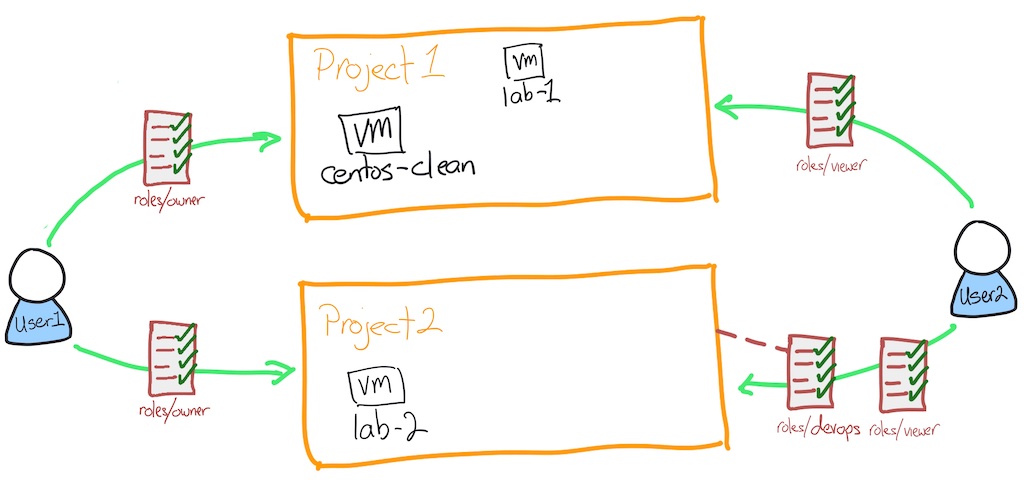
Your environment
After these last changes your environment looks like this:
What are two of the three items you need to provide when binding an IAM role to a project?service identifierzonenetworkaccountproject id
Submit
Task 5. Using a service account
You have seen how to authenticate and use gcloud to access Google Cloud services with roles. Now you'll look at a typical approach.
You have an application that uses the Application Programming Interfaces (APIs) to read and write to Cloud Storage buckets. You don't want to have to authenticate every time you launch a new server, that would be both painful and not in the spirit of using the cloud! So, you use service accounts.
A service account is a special Google account that belongs to your application or a virtual machine (VM) instead of to an individual end user. Your application uses the service account to call the Google API of a service so that the users aren't directly involved.
Learn more about service accounts from the Service accounts Guide.
Now you create a service account, use that service account with a compute instance, then test that the service account allows the access you need.
Create a service account
- Switch your gcloud configuration to default,
user2doesn't have the rights to set up and configure service accounts. Inside the SSH session run:
gcloud config configurations activate default
- Set the project to
PROJECTID2in your configuration. Inside the SSH session run:
gcloud config set project $PROJECTID2
Make sure you are targeting the right project.
- Create the service account. Inside the SSH session run:
gcloud iam service-accounts create devops --display-name devops
Check the created devops service account
Check my progress
- Get the service account email address. Inside the SSH session run:
gcloud iam service-accounts list --filter "displayName=devops"
Note: The filter shows only the line you are interested in. Notice that the email address contains the role name and the project id.
- Put the email address into a local variable called
SA. Inside the SSH session run:
SA=$(gcloud iam service-accounts list --format="value(email)" --filter "displayName=devops")
This command sets the SA local variable to the email address of the service account. Pretty useful right?
- Give the service account the role of
iam.serviceAccountUser. Inside the SSH session run:
gcloud projects add-iam-policy-binding $PROJECTID2 --member serviceAccount:$SA --role=roles/iam.serviceAccountUser
This role allows the service account to assign a service account to a compute instance.
Check devops service account is bound to project2 and the role roles/iam.serviceAccountUser
Check my progress
Task 6. Using the service account with a compute instance
- Give the service account the role of
compute.instanceAdmin. Inside the SSH session run:
gcloud projects add-iam-policy-binding $PROJECTID2 --member serviceAccount:$SA --role=roles/compute.instanceAdmin
This role allows the service account to manage compute instances.
Check devops service account is bound to project2 and the role roles/compute.instanceAdmin
Check my progress
- Create an instance with the devops service account attached. You also have to specify an access scope that defines the API calls that the instance can make. Inside the SSH session run:
gcloud compute instances create lab-3 --zone us-east1-c --machine-type=e2-standard-2 --service-account $SA --scopes "https://www.googleapis.com/auth/compute"
Access scopes are the legacy method of specifying permissions for your instance. Access scopes are not a security mechanism. Instead, they define the default OAuth scopes used in requests from the gcloud tool or the client libraries. They have no effect when making requests not authenticated through OAuth, such as gRPC or the SignBlob APIs.
You must set up access scopes when you configure an instance to run as a service account.
A best practice is to set the full cloud-platform access scope on the instance, then securely limit the service account's API access with IAM roles.
Access scopes apply on a per-instance basis. You set access scopes when creating an instance and the access scopes persist only for the life of the instance.
Access scopes have no effect if you have not enabled the related API on the project that the service account belongs to. For example, granting an access scope for Cloud Storage on a virtual machine instance allows the instance to call the Cloud Storage API only if you have enabled the Cloud Storage API on the project.
Check lab-3 has the service account attached
Check my progress
Task 7. Test the service account
- Connect to the newly created instance using
gcloud compute ssh. Inside the SSH session run:
gcloud compute ssh lab-3 --zone us-east1-c
Press ENTER when asked if you want to continue.
Press ENTER twice to skip making a password.
- The default image used already contains
gcloudconfiguration. Inside the SSH session run:
gcloud config list
The configuration now has the service account
- Create an instance. This tests that you have the necessary permissions via the service account:
gcloud compute instances create lab-4 --zone us-east1-c --machine-type=e2-standard-2
You can press ENTER to accept the default zone for this VM.
- Check roles attached are working. Inside the SSH session run:
gcloud compute instances list
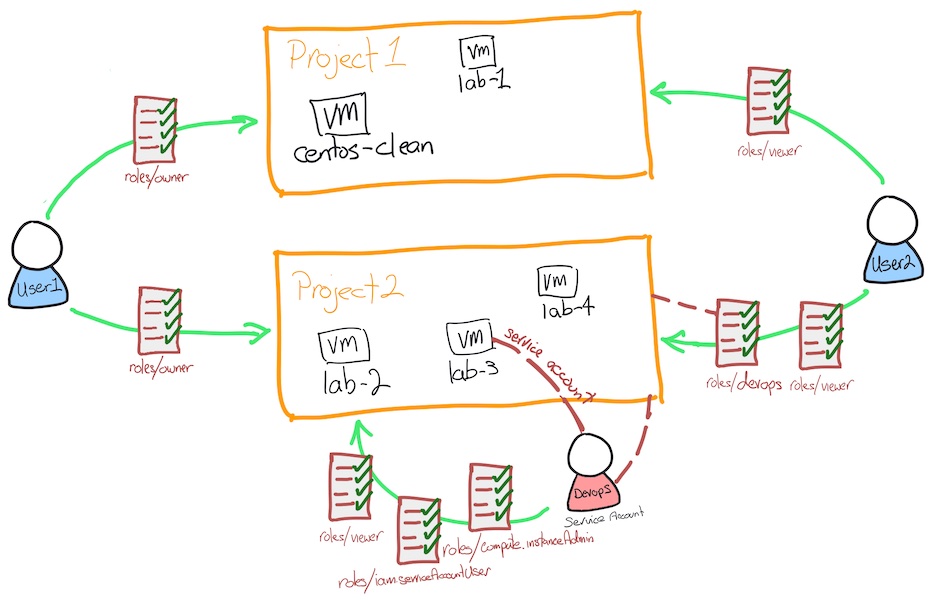
Because the service account has permissions, you can see the instances listed.
Your environment now looks like this
What is NOT true about service accounts?
It allows automated deployments of resources.
Service accounts always provide full admin rights to the project.
Service accounts can be assigned only the rights necessary for the access required.
It prevents a user from directly getting involved in setting up access on the instance.
Solution of lab
Quick
export ZONE=$(gcloud compute project-info describe \
--format="value(commonInstanceMetadata.items[google-compute-default-zone])")

gcloud compute ssh centos-clean --zone=$ZONE --quiet
curl -LO raw.githubusercontent.com/ePlus-DEV/storage/refs/heads/main/labs/GSP647/lab.sh
source lab.sh
Script Alternative
curl -LO raw.githubusercontent.com/Cloud-Wala-Banda/Labs-Solutions/main/Configuring%20IAM%20Permissions%20with%20gcloud/gsp647.sh
sudo chmod +x gsp647.sh
sudo chmod +x *.sh
./*.sh


Alternative Solution
https://www.youtube.com/watch?v=Vor35uhoEEw
gcloud compute ssh centos-clean --zone=$(gcloud compute project-info describe --format="value(commonInstanceMetadata.items[google-compute-default-zone])") --quiet
curl -LO raw.githubusercontent.com/ePlus-DEV/storage/refs/heads/main/labs/GSP647/alternative-solution.sh
source alternative-solution.sh
Script Alternative
curl -LO https://raw.githubusercontent.com/Itsabhishek7py/GoogleCloudSkillsboost/refs/heads/main/Configuring%20IAM%20Permissions%20with%20gcloud/abhishek.sh
sudo chmod +x abhishek.sh
./abhishek.sh