
Google Meet: Getting Started - GSP467

A passionate full-stack developer from @ePlus.DEV
Overview
Google Meet is a video conferencing application that lets you hold impromptu video meetings on the go, virtual training classes around the world, remote interviews, and much more.
What you'll do
In this lab, you do the following:
Start a video meeting
Join and collaborate in a video meeting
Manage device settings
Note: You can also use Google Meet from your mobile device using the [Meet mobile app](https://play.google.com/store/apps/details?id=com.google.android.apps.meetings&hl=en_US:) on Android® and Apple® iOS® devices.
Setup and requirements
Before you click the Start Lab button
Read these instructions. Labs are timed and you cannot pause them. The timer, which starts when you click Start Lab, shows how long Google Cloud resources are made available to you.
This hands-on lab lets you do the lab activities in a real cloud environment, not in a simulation or demo environment. It does so by giving you new, temporary credentials you use to sign in and access Google Cloud for the duration of the lab.
To complete this lab, you need:
- Access to a standard internet browser (Chrome browser recommended).
Note: Use an Incognito (recommended) or private browser window to run this lab. This prevents conflicts between your personal account and the student account, which may cause extra charges incurred to your personal account.
- Time to complete the lab—remember, once you start, you cannot pause a lab.
Note: Use only the student account for this lab. If you use a different Google Cloud account, you may incur charges to that account.
Start your lab
When you are ready, click Start Lab in the upper left panel.
The Lab Details pane appears with the temporary credentials that you must use to sign into Gmail for this lab.
If you need to pay for the lab, a pop-up opens for you to select your payment method.
Click Open Google Drive.
The lab spins up resources, and then opens another tab that shows the Sign in page.
Tip: Open the tabs in separate windows, side-by-side.
If necessary, copy the Username below and paste it into the Sign in dialog.
"Username"Click Next.
Copy the Password below and paste it into the Welcome dialog.
"Password"Click Next.
Accept all terms and conditions as prompted.
Google Drive opens and you are signed in to the Student Google Account.
Task 1. Start a video meeting
- Click the Google Apps dots, then click Meet.
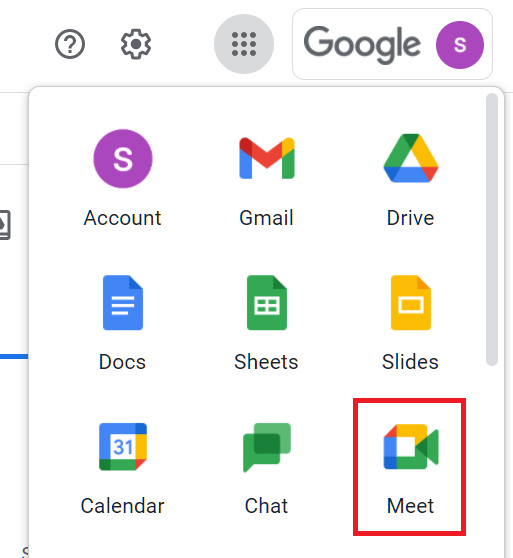
Alternatively, type meet.google.com in the browser's URL bar.
Click New meeting.
Click Start an instant meeting. The meeting window opens.
Your meeting has started with you as the only participant. The Your meeting's ready dialog shows the information you need to invite others to join your meeting:
Meeting link
Dial-in number
PIN
You can find all controls in the bottom bar of the meeting window. The bottom bar is always visible. The meeting code is on the far left, the control buttons are in the middle.
Tip: When you point to a button, the name of the button appears.
| Button | Description |
| Turn microphone on or off | |
| Turn camera on or off video camera | |
| Turn captions on or off | |
| Raise your hand | |
| Share your screen or give presentations | |
| Change settings, background, layout and more | |
| Leave call |
Meeting detail buttons are on the right:
| Button | Description |
| Share meeting details with guests | |
| View, remove, and pin participants, and invite more participants | |
| Send chat messages | |
| Use Breakout rooms, Polls, A&A and other meeting features | |
| Share your screen or give presentations |
Task 2. Schedule a video meeting in Calendar
It’s easy to schedule a Google Meet video meeting in Calendar — just create an event, add guests to it, and the meeting is automatically set up.
Go to Google Calendar.
Click Create in the top left, and then select Event from dropdown to create an event.
Add a title, for example, "Weekly status check".
Click Add guests and type the email address for at least one person, for example, your personal email address.
Click View conference details (the down arrow inline with the Join with Google Meet button). Find the Meeting ID and click Edit to view the meeting code.
Copy and record the meeting to use later in this lab.
Leave all else at the default values, and click Save.
Click Send to send invitation emails to Google Calendar guests. You may have to click Invite all guests depending on who you invited.
Guests receive an email with the event information and a link to the video call.
Note: Guests can forward the meeting link to other people. If someone who was not invited to the Calendar event tries to join, a meeting participant from your organization must accept their request.
Click Check my progress to verify the objective.
Schedule a video meeting in Calendar
Check my progress
Task 3. Start a video meeting from Gmail
Google Meet must be turned on from Gmail before you can start a video meeting from Gmail. Check to be sure Google Meet is turned on:
Open Gmail.
In the top right, click Settings (
) > See all settings.
At the top, choose Chat and Meet.
In the Meet section, be sure Show the Meet section in the main menu is selected.
If necessary, click Save Changes.

To start a video meeting from Gmail:
At the bottom left corner, click Meet > New meeting.
Click Join now to launch Google Meet.
Click Join now to enter the meeting.
End the meeting by clicking Leave call and close the browser tab.
To invite guests to a meeting from Gmail:
At the bottom left corner, click Meet > New meeting.
To send the meeting invite via link or email, click Send invite.
To copy the meeting invite details, click Copy meeting invite.
To send an email invite, click Share via email.
In the Recipients field, enter an email address, for example your personal email address.
Click Send.
Task 4. Join a video meeting from Google Meet
In Meet, to join a meeting or event, you select a scheduled event or you can enter a meeting code or nickname.
Select a scheduled event
Click Google Meet to launch Google Meet.
You should see the meeting you previously created on the right. Click on it.
Note: Only meetings scheduled through Google Calendar appear on Google Meet.
Click Join now.
End the meeting by clicking Leave call and close the browser tab.
Enter a meeting code
The meeting code is the string of letters at the end of the meeting link. For example if the meeting link is https://meet.google.com/usp-oude-yig, the meeting code is usp-oude-yig. For this lab you'll use the code you previously recorded when you scheduled an event in Calendar.
Click Google Meet to launch Google Meet.
Enter the meeting code you previously recorded in the Enter a code or nickname field and click Join.
Click Join now.
End the meeting by clicking Leave call and close the browser tab.
Task 5. Join a video meeting from a Calendar event
See your scheduled meetings in Calendar and quickly join a video meeting.
In Calendar, click the event you previously scheduled.
Click Join with Google Meet.
Click Join now
End the meeting by clicking Leave call and close the browser tab.
Task 6. Join a video meeting from gmail
Join a scheduled meeting
In Gmail, at the bottom left corner, click “Meet”.
You should see the meeting you previously scheduled listed under My Meetings.
Click Join now.
Click Join now in the meeting window.
End the meeting by clicking Leave call and close the browser tab.
Join using a code
In Gmail, at the bottom left corner, click Meet.
Click Join a meeting.
Enter the code you previously recorded and click Join.
Click Join now.
Leave this meeting open to use in the following sections.
Task 7. Record a video meeting
Start and stop a recording
At the bottom right, click Activities > Recording.
Click Start recording.
In the window that appears, click Start.
When you finish, click Stop recording.
In the confirmation dialog, click Stop recording.
Note: The recording automatically stops when everyone leaves the meeting.
- Go to your Google Drive to see your recording. It may take a few minutes for the video meeting to be saved to your Google Drive.
Click Check my progress to verify the objective.
Record a video meeting
Check my progress
It may take 5 minutes for your video meeting to be saved to your Google Drive. Continue with the lab, at the end of the lab check Drive and return to this section to click Check my progress.
Note: You may delete the video file after you have passed the progress objective.
Task 8. Send chat messages to video call participants
Send a chat message during a video call:
At the bottom right, click the Chat icon.
Enter a message.
Click Send.
Task 9. Handy tools
Use these tools to manage your meeting window:
Change Layout (More options > Change Layout): How the participants in the video meeting will be arranged.
Apply visual effects (More options > Apply visual effects): Click this to see the default backgrounds that are available to use, or just blur your real background. You can upload images to use as your background, too, try it out!
Settings (More options > Settings): In Settings you can change the default camera, speakers, and microphone Google Meet uses, and adjust your video quality. Experiment by changing each of the settings to see what happens.
Task 10. Remove people during a video meeting
Note: This lab does not support guests in a video meeting, but this is how you would do it.
To remove people during a video meeting:
At the bottom right, click the People icon (
).
Next to the participant's name, click More actions > Remove from meeting.
Click Remove to confirm the removal.

Don't forget to check your Google Drive for the recording
Remember to check your Google Drive to view your recording and then return to the Record a video meeting section to click Check my progress.
Solution of Lab
📅 Task 2. Schedule a Video Meeting in Calendar
Open Google Calendar → click Create > Event.
Add title: Weekly status check.
Add at least 1 guest email (e.g., your personal email).
Expand Join with Google Meet → find the meeting ID → record it.
Click Save → Send invitations.
⏺️ Task 7. Record a Video Meeting
Download file:

🎥 Task 1. Start a Video Meeting
Open Google Apps menu (dots) → click Meet (or go to
meet.google.com).Click New meeting → Start an instant meeting.
Meeting starts with you as host → a dialog shows:
Meeting link
Dial-in number
PIN
Use bottom bar for controls (mic, camera, captions, hand raise, present, settings, leave).
✅ Check progress: Start a video meeting
📅 Task 2. Schedule a Video Meeting in Calendar
Open Google Calendar → click Create > Event.
Add title: Weekly status check.
Add at least 1 guest email (e.g., your personal email).
Expand Join with Google Meet → find the meeting ID → record it.
Click Save → Send invitations.
✅ Check progress: Schedule a video meeting in Calendar
📧 Task 3. Start a Video Meeting from Gmail
In Gmail → Settings > See all settings > Chat and Meet → confirm Show Meet section is enabled.
Bottom left → Meet > New meeting.
Click Join now to launch.
To invite: choose Send invite, Copy meeting invite, or Share via email.
Add recipient email → Send.
🔑 Task 4. Join a Video Meeting from Google Meet
Option A – Scheduled event:
- Open Meet → select your scheduled meeting → Join now.
Option B – Meeting code:
- In Meet → enter code you recorded earlier → Join now.
📆 Task 5. Join a Meeting from Calendar
Open Google Calendar → click your scheduled event.
Click Join with Google Meet → Join now.
📬 Task 6. Join a Meeting from Gmail
Option A – From My Meetings:
- In Gmail → bottom left Meet → select your scheduled meeting → Join now.
Option B – Using code:
In Gmail → Meet > Join a meeting → enter meeting code → Join now.
Leave this meeting open for next tasks.
⏺️ Task 7. Record a Video Meeting
In meeting → bottom right → Activities > Recording.
Click Start recording → confirm.
When done → Stop recording.
File will save to Google Drive (may take a few minutes).
✅ Check progress: Record a video meeting
💬 Task 8. Send Chat Messages
In meeting → bottom right → Chat icon.
Type a message → Send.
🛠️ Task 9. Handy Tools
Change Layout: More options → Change Layout.
Apply Visual Effects: Blur or replace background.
Settings: Adjust camera, mic, speakers, and video quality.
👥 Task 10. Remove Participants (info only)
Bottom right → People icon.
Next to participant → More actions > Remove from meeting → confirm.




