

Migrate to AlloyDB from PostgreSQL Using Database Migration Service - GSP1084
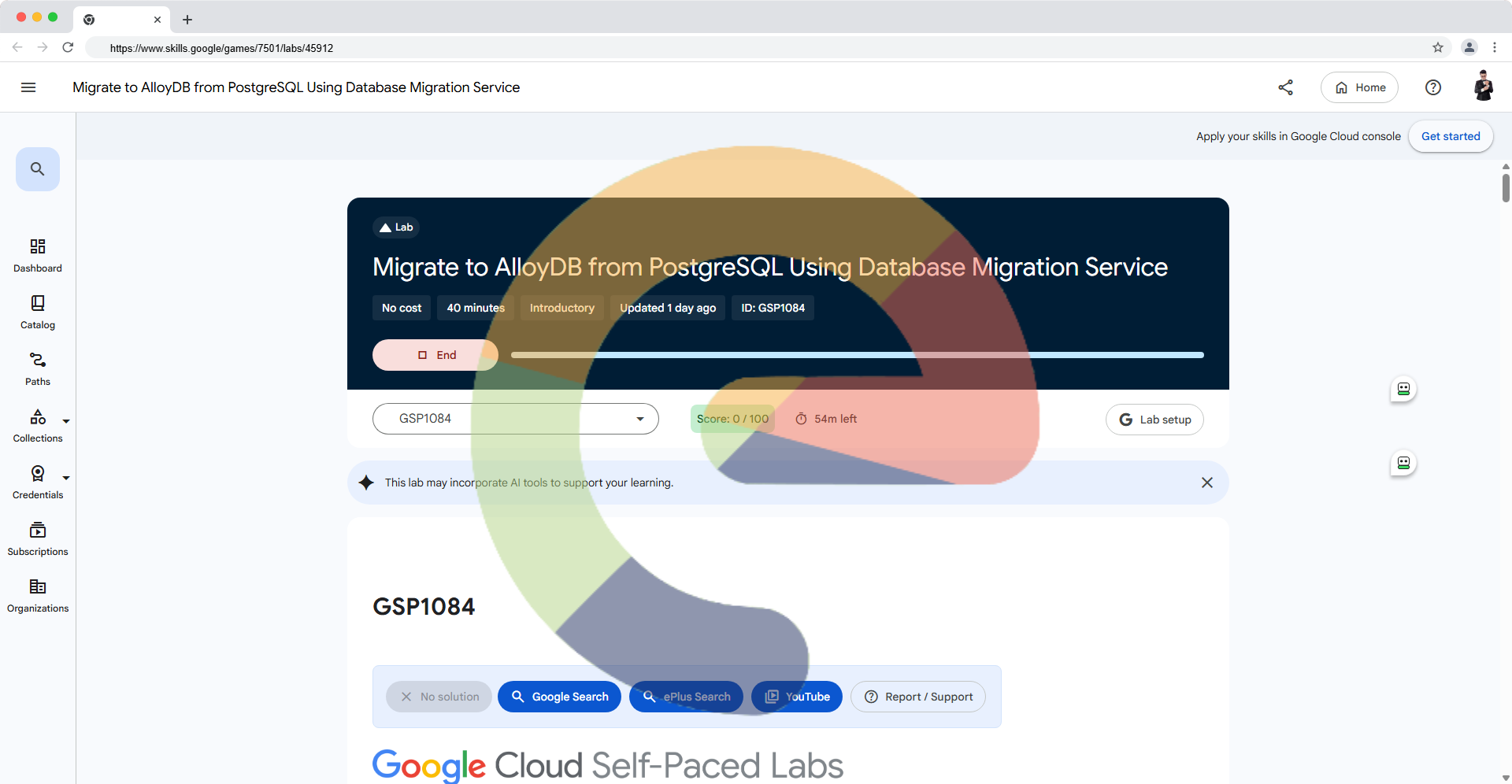
Original task-by-task guide based on the four-task Google Skills edition updated August 10, 2026. This is an independently written practical walkthrough; see the official lab for the full original text and interface images.
Overview
This exercise migrates a standalone PostgreSQL database hosted on a Compute Engine virtual machine into an existing AlloyDB for PostgreSQL cluster. Database Migration Service (DMS) first transfers existing data, then continuously replicates later changes using change data capture (CDC). Connectivity uses VPC peering. The source database's replication prerequisites, including pglogical, are already prepared in the lab environment.
What you'll learn
- Check source PostgreSQL tables and reference row counts.
- Create a PostgreSQL source connection profile inside the DMS migration job wizard.
- Configure a continuous migration into the existing AlloyDB target and wait for CDC.
- Confirm the imported dataset from an AlloyDB client VM.
- Make a change to the source and check it replicates to the target.
Setup and requirements
Before you click the Start Lab button
This timed lab uses a temporary Google Cloud project and student credentials. Use a private/incognito browser window, start the lab, and sign in with only the account and password generated for this session; avoid using your own billing account. Don't click End lab until you're done, because it destroys the lab resources.
How to start your lab and sign in to the Google Cloud console
- Click Start Lab; the lab credentials and Open Google Cloud console link appear in the setup panel.
- Open the console in an incognito window and sign in using the issued student account.
- Accept the initial terms; skip account recovery, two-factor enrollment, and free-trial setup.

Activate Cloud Shell
Click Activate Cloud Shell in the console toolbar, then click Continue and Authorize as needed.

Optionally inspect the active account and selected project:
gcloud auth list
gcloud config list project
The outputs will show the temporary project and account assigned to your own lab session. Never publish their credentials.
Task 1. Verify the data in the source instance for migration
Verify the data in the source instance
- In the navigation menu, open Compute Engine → VM instances.
- Locate
pg14-sourceand click SSH. - Open the PostgreSQL shell:
sudo -u postgres psql
- List available tables:
\dt
- Count records in each of the six HR tables:
SELECT count(*) AS countries_row_count FROM countries;
SELECT count(*) AS departments_row_count FROM departments;
SELECT count(*) AS employees_row_count FROM employees;
SELECT count(*) AS jobs_row_count FROM jobs;
SELECT count(*) AS locations_row_count FROM locations;
SELECT count(*) AS regions_row_count FROM regions;
The reference dataset supplied with the lab has:
| Table | Rows |
|---|---|
| countries | 25 |
| departments | 27 |
| employees | 107 |
| jobs | 19 |
| locations | 23 |
| regions | 4 |
Leave the PostgreSQL shell, then close the source VM session:
\q
exit
Task 2. Create and start a continuous migration job
In this four-task edition, creating the source connection profile is part of Task 2, not a standalone task.
Get connectivity information for the PostgreSQL source instance
In Compute Engine → VM instances, locate pg14-source and copy its Internal IP. This address belongs to the temporary lab project; don't substitute an internet-facing IP.
Create a new continuous migration job
- Search for Database Migration in the Google Cloud console.
- Open Migration jobs → Create migration job.
Get started
Fill the wizard with these values and leave the other settings at their lab defaults:
| Field | Value |
|---|---|
| Migration job name | postgres-to-alloydb |
| Source database engine | PostgreSQL |
| Destination database engine | AlloyDB for PostgreSQL |
| Destination region | Region of the lab's existing target cluster |
Click Save & continue.
Define a source
- Under Select source connection profile, choose Create a connection profile.
- Enter the source connection profile settings:
| Field | Value |
|---|---|
| Profile type | Source |
| Connection profile name | pg14-source |
| Source database engine | PostgreSQL |
| Destination database engine | AlloyDB for PostgreSQL |
| Region | Region assigned to the lab resources |
| Connectivity / host | Source VM Internal IP |
| Port | 5432 |
| Username | postgres |
| Password | Temporary lab database password (provided by the official lab) |
- Click Define or expand the PostgreSQL connection settings as shown in the current console wizard, then Save and Create the connection profile.
- Confirm that
pg14-sourceis selected as the source, and click Save & continue.
Test completed task
Click Check my progress for Create a connection profile for the PostgreSQL source instance. This is the first graded checkpoint (50 points) in this edition.
Define the destination
- Choose Existing cluster as the target type.
- Select
alloydb-target-cluster. - Choose Select & continue.
- When prompted, enter
alloydb-target-clusterto confirm the destination and continue.
Do not create another AlloyDB cluster or promote the target: the lab uses the provided target for continuous replication.
Define the connectivity method
Select VPC peering, then click Configure & continue.
Configure the migration databases
Select All databases, then Save & continue.
Test and create the migration job
- On the final wizard page, click Test job.
- Once the test succeeds, click Create & start job, and confirm if prompted.
- Do not select the create-only option: the migration must actually start.
Review the status of the continuous migration job
Open the postgres-to-alloydb job details page. Its state should advance from Starting to Running; once the initial data copy finishes, the phase should display CDC. Do not proceed to data comparison before the continuous replication phase is available.
Task 3. Confirm data load in the AlloyDB for PostgreSQL instance
Check the AlloyDB for PostgreSQL instance
- Open AlloyDB for PostgreSQL → Clusters.
- Select
alloydb-target-cluster, then open Connectivity and record its Private IP. - If the copied address contains
:5432, remove the port suffix; the next command requires only the IP address. - Return to Compute Engine → VM instances, and click SSH for
alloydb-client. - On the client VM, set the target IP using your observed private address:
export ALLOYDB="YOUR_ALLOYDB_PRIVATE_IP"
echo "$ALLOYDB" > alloydbip.txt
psql -h "$ALLOYDB" -U postgres
- Enter the temporary database password from the official lab when prompted.
- In
psql, list the imported tables and compare their row counts to the source:
\dt
SELECT count(*) AS countries_row_count FROM countries;
SELECT count(*) AS departments_row_count FROM departments;
SELECT count(*) AS employees_row_count FROM employees;
SELECT count(*) AS jobs_row_count FROM jobs;
SELECT count(*) AS locations_row_count FROM locations;
SELECT count(*) AS regions_row_count FROM regions;
All six tables should be present, initially with the same counts as in Task 1.
- Inspect the
regionstable:
SELECT region_id, region_name FROM regions;
At this stage there should be four original regions. Leave the client terminal and psql session open for the CDC check in Task 4.
Task 4. Propagate a live update to the AlloyDB instance
This step checks that the continuous migration job also replicates updates made after the initial copy.
- In Compute Engine, reopen SSH to the source VM
pg14-source. - Launch
psqlon the source VM:
sudo -u postgres psql
- Insert the new region requested by the lab:
INSERT INTO regions VALUES (5, 'Oceania');
SELECT region_id, region_name FROM regions;
The source should now list five rows, including 5 | Oceania.
Review data in the AlloyDB for PostgreSQL instance
- Return to the still-open
alloydb-clientpsqlsession. - Query the destination:
SELECT region_id, region_name FROM regions;
After CDC catches up, the destination should also show five rows and the new Oceania entry. If it has not appeared yet, wait for replication and repeat the query.
Test completed task
Click Check my progress for Test the continuous migration of data. This is the second graded checkpoint (50 points). The commands and reference outputs shown here do not represent a grader PASS from a live run.
Congratulations!
You have configured a source profile, run a PostgreSQL-to-AlloyDB continuous migration, compared source and destination records, and checked an additional replicated update.
Solution of Lab
Quick
curl -LO raw.githubusercontent.com/ePlus-DEV/storage/refs/heads/main/labs/GSP1084/lab.sh
source lab.sh
Manual
https://www.youtube.com/watch?v=Fvy6KeeplLY
https://www.youtube.com/watch?v=64HnBEnN3jk
Sources and verification
- Original Google Skills GSP1084 lab — four-task edition, Manual Last Updated August 10, 2026.
- Google Cloud documentation: Migrate to AlloyDB for PostgreSQL using DMS
Documentation note: Task order, wizard fields, two checkpoints, example counts, and the two linked Google Skills interface images are matched to the August 2026 four-task edition. Text is paraphrased rather than copied verbatim. The image links reference Google's original CDN and remain subject to their availability and reuse terms. Runtime/grader unverified in this session.
Copyright (c) 2026 ePlus.DEV | Unlicense (applies to original guide and automation, not Google's images or documentation).
About the author
A passionate full-stack developer from @ePlus.DEV
Comments
Join the discussionNo comments yet. Be the first to comment.
Tip & Tricks
Quick and practical tips to help users optimize tasks, improve skills, and solve common problems effectively across various areas like tech, lifestyle, productivity, and more.