
Use APIs to Work with Cloud Storage: Challenge Lab - ARC125

A passionate full-stack developer from @ePlus.DEV
Overview
In a challenge lab you’re given a scenario and a set of tasks. Instead of following step-by-step instructions, you will use the skills learned from the labs in the course to figure out how to complete the tasks on your own! An automated scoring system (shown on this page) will provide feedback on whether you have completed your tasks correctly.
When you take a challenge lab, you will not be taught new Google Cloud concepts. You are expected to extend your learned skills, like changing default values and reading and researching error messages to fix your own mistakes.
To score 100% you must successfully complete all tasks within the time period!
Setup and requirements
Before you click the Start Lab button
Read these instructions. Labs are timed and you cannot pause them. The timer, which starts when you click Start Lab, shows how long Google Cloud resources are made available to you.
This hands-on lab lets you do the lab activities in a real cloud environment, not in a simulation or demo environment. It does so by giving you new, temporary credentials you use to sign in and access Google Cloud for the duration of the lab.
To complete this lab, you need:
- Access to a standard internet browser (Chrome browser recommended).
Note: Use an Incognito (recommended) or private browser window to run this lab. This prevents conflicts between your personal account and the student account, which may cause extra charges incurred to your personal account.
- Time to complete the lab—remember, once you start, you cannot pause a lab.
Note: Use only the student account for this lab. If you use a different Google Cloud account, you may incur charges to that account.
Challenge scenario
You are just starting your cloud engineer role. So far you have been helping teams to use the Google Cloud services required for various projects. One of the current project requirements is to use the Cloud Storage API to create new buckets, upload files, copy files between buckets, make objects publicly accessible, and delete files and buckets.
You are expected to have the skills and knowledge for the tasks that follow.
Your challenge
For this challenge, you have been tasked with creating buckets, uploading a file, copying a file to another bucket, making an object (file) publicly accessible, and deleting the original file and bucket using the Cloud Storage JSON/REST API.
You need to perform the following tasks using the Cloud Storage JSON/REST API:
Create a bucket.
Upload an object file to a Cloud Storage bucket.
Copy the file to another bucket.
Make the file publicly accessible.
Delete the file from the first Cloud Storage bucket.
Delete the first Cloud Storage bucket.
Some standards you should follow:
Ensure you set an environmental variable for your project ID and obtain an authorization token for the Cloud Storage API that you can use in Cloud Shell. For more information, review the lab titled Introduction to APIs in Google.
Be sure to perform each task using the Cloud Storage JSON/REST API.
Each task is described in detail below, good luck!
Task 1. Create two Cloud Storage buckets
- Create a JSON file that contains the following code in the Cloud Shell:
{
   "name": "qwiklabs-gcp-00-c414f1dfcd2f-bucket-1",
   "location": "us",
   "storageClass": "multi_regional"
}
Use
curlto call the JSON API to create the bucket.Repeat steps one and two to create a second bucket named
qwiklabs-gcp-00-c414f1dfcd2f-bucket-2.
Click here for hint!
Click Check my progress to verify the objective.
Create two Cloud Storage buckets
Check my progress
Task 2. Upload an image file to a Cloud Storage Bucket
- For this task, save the below image to your computer and give it a name of your choice.
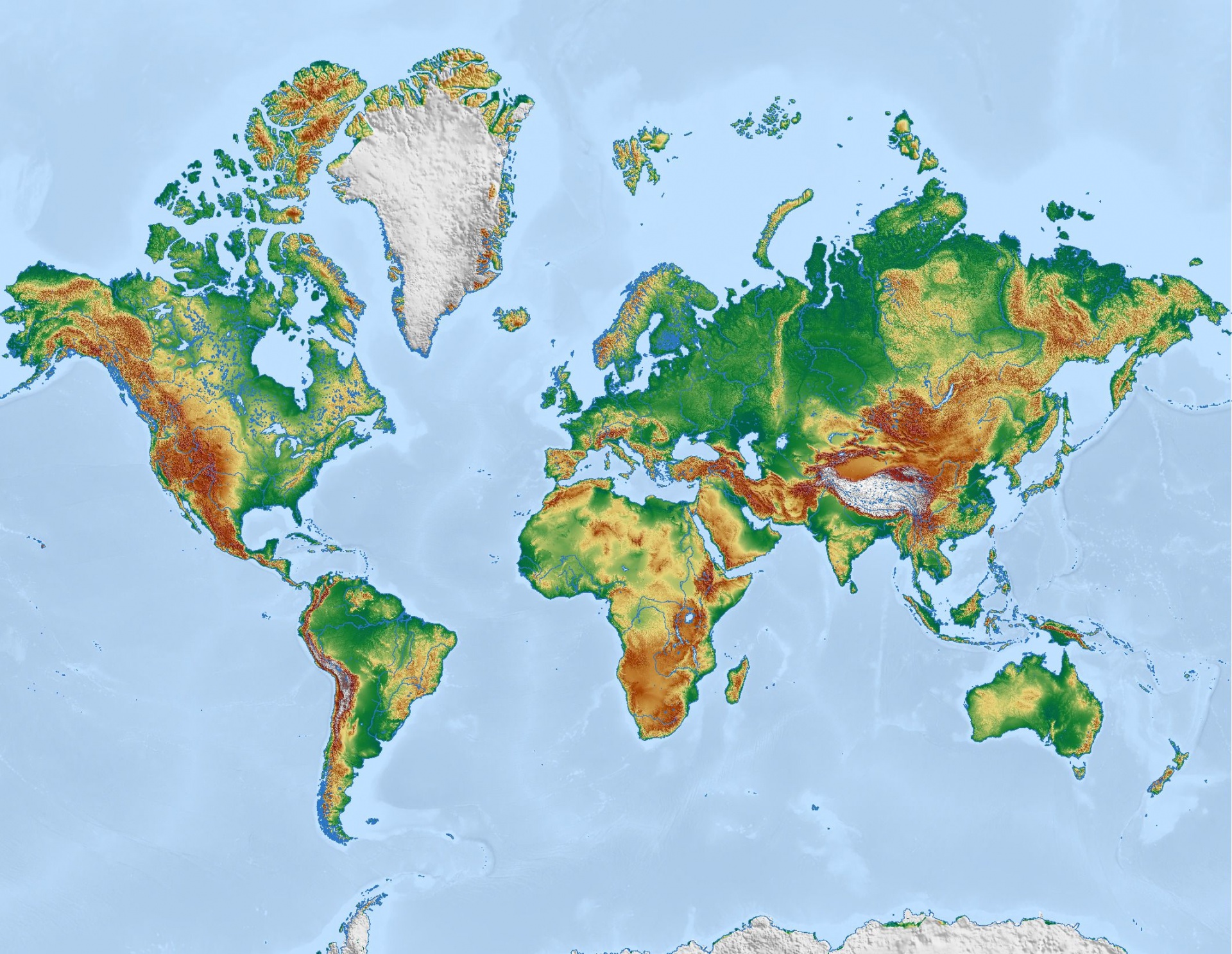
In your Cloud Shell session, click on the More menu icon in the top-right corner. Click Upload > Choose File. Select and upload your file. This will add the image to your home directory.
Use
curlto call the JSON API that uploads the file to the bucketqwiklabs-gcp-00-c414f1dfcd2f-bucket-1.
Click here for hint!
Click Check my progress to verify the objective.
Upload an image file to a Cloud Storage Bucket
Check my progress
Task 3. Copy a file to another bucket
For this task, use curl to call the JSON API and copy the image file from the Cloud Storage bucket qwiklabs-gcp-00-c414f1dfcd2f-bucket-1 to a second bucket, qwiklabs-gcp-00-c414f1dfcd2f-bucket-2.
Click here for hint!
Click Check my progress to verify the objective.
Copy a file to another bucket
Check my progress
Task 4. Make an object (file) publicly accessible
- Create a JSON file that has the following code:
{
  "entity": "allUsers",
  "role": "READER"
}
- Use
curlto call the JSON API and make the object (file) publicly accessible.
Click here for hint!
Click Check my progress to verify the objective.
Make an object (file) publicly accessible
Check my progress
Task 5. Delete the object file and a Cloud Storage bucket (Bucket 1)
For this task, you will do some cleanup.
Now that the file has been copied to the second Cloud Storage bucket qwiklabs-gcp-00-c414f1dfcd2f-bucket-2, you will delete the object file in the first bucket (Bucket 1) as well as Bucket 1, qwiklabs-gcp-00-c414f1dfcd2f-bucket-1.
Use
curlto call the JSON API and delete the file stored in the Cloud Storage bucketqwiklabs-gcp-00-c414f1dfcd2f-bucket-1.Use
curlto call the JSON API and delete the Cloud Storage bucketqwiklabs-gcp-00-c414f1dfcd2f-bucket-1.
Click here for hint!
Click Check my progress to verify the objective.
Delete the file and Cloud Storage bucket (Bucket 1)
Solution of Lab
Quick
curl -LO raw.githubusercontent.com/ePlus-DEV/storage/refs/heads/main/labs/ARC125/lab.sh
source lab.sh
Script Alternative
curl -LO raw.githubusercontent.com/QUICK-GCP-LAB/2-Minutes-Labs-Solutions/main/Use%20APIs%20to%20Work%20with%20Cloud%20Storage%20Challenge%20Lab/arc125.sh
sudo chmod +x arc125.sh
./arc125.sh


Other Solution
https://www.youtube.com/watch?v=qwNDMACiLhc
wget -O SakshamXTech.sh "https://raw.githubusercontent.com/Saksham-Dev-001/Arcade-Google-Cloud-Labs/refs/heads/main/Use%20APIs%20to%20Work%20with%20Cloud%20Storage%3A%20Challenge%20Lab/SakshamXTech.sh"
sed -i 's/\r$//' SakshamXTech.sh
chmod +x SakshamXTech.sh
bash SakshamXTech.sh




