
Using Specialized Processors with Document AI (Python) - GSP1140

A passionate full-stack developer from @ePlus.DEV
Overview
Document AI is a document understanding solution that takes unstructured data (e.g. documents, emails, invoices, forms, etc.) and makes the data easier to understand, analyze, and consume. The API provides structure through content classification, entity extraction, advanced searching, and more.
In this lab, you will learn how to use Document AI Specialized Processors to classify and parse specialized documents with Python. For the parsing and entity extraction, you will use an invoice as an example. This procedure and example code will work with any specialized document supported by Document AI.
Objectives
In this lab, you will learn how to perform the following tasks:
- Extract schematized entities using specialized processors.
Setup and requirements
Before you click the Start Lab button
Read these instructions. Labs are timed and you cannot pause them. The timer, which starts when you click Start Lab, shows how long Google Cloud resources are made available to you.
This hands-on lab lets you do the lab activities in a real cloud environment, not in a simulation or demo environment. It does so by giving you new, temporary credentials you use to sign in and access Google Cloud for the duration of the lab.
To complete this lab, you need:
- Access to a standard internet browser (Chrome browser recommended).
Note: Use an Incognito (recommended) or private browser window to run this lab. This prevents conflicts between your personal account and the student account, which may cause extra charges incurred to your personal account.
- Time to complete the lab—remember, once you start, you cannot pause a lab.
Note: Use only the student account for this lab. If you use a different Google Cloud account, you may incur charges to that account.
How to start your lab and sign in to the Google Cloud console
Click the Start Lab button. If you need to pay for the lab, a dialog opens for you to select your payment method. On the left is the Lab Details pane with the following:
The Open Google Cloud console button
Time remaining
The temporary credentials that you must use for this lab
Other information, if needed, to step through this lab
Click Open Google Cloud console (or right-click and select Open Link in Incognito Window if you are running the Chrome browser).
The lab spins up resources, and then opens another tab that shows the Sign in page.
Tip: Arrange the tabs in separate windows, side-by-side.
Note: If you see the Choose an account dialog, click Use Another Account.
If necessary, copy the Username below and paste it into the Sign in dialog.
student-00-b132012bdd59@qwiklabs.netCopied!
You can also find the Username in the Lab Details pane.
Click Next.
Copy the Password below and paste it into the Welcome dialog.
f1iWnFssPEc1Copied!
You can also find the Password in the Lab Details pane.
Click Next.
Important: You must use the credentials the lab provides you. Do not use your Google Cloud account credentials.
Note: Using your own Google Cloud account for this lab may incur extra charges.
Click through the subsequent pages:
Accept the terms and conditions.
Do not add recovery options or two-factor authentication (because this is a temporary account).
Do not sign up for free trials.
After a few moments, the Google Cloud console opens in this tab.
Note: To access Google Cloud products and services, click the Navigation menu or type the service or product name in the Search field.

Activate Cloud Shell
Cloud Shell is a virtual machine that is loaded with development tools. It offers a persistent 5GB home directory and runs on the Google Cloud. Cloud Shell provides command-line access to your Google Cloud resources.
Click Activate Cloud Shell at the top of the Google Cloud console.
Click through the following windows:
Continue through the Cloud Shell information window.
Authorize Cloud Shell to use your credentials to make Google Cloud API calls.
When you are connected, you are already authenticated, and the project is set to your Project_ID, qwiklabs-gcp-03-f14d60f7f072. The output contains a line that declares the Project_ID for this session:
Your Cloud Platform project in this session is set to qwiklabs-gcp-03-f14d60f7f072
gcloud is the command-line tool for Google Cloud. It comes pre-installed on Cloud Shell and supports tab-completion.
- (Optional) You can list the active account name with this command:
gcloud auth list
Copied!
- Click Authorize.
Output:
ACTIVE: *
ACCOUNT: student-00-b132012bdd59@qwiklabs.net

To set the active account, run:
    $ gcloud config set account `ACCOUNT`
- (Optional) You can list the project ID with this command:
gcloud config list project
Copied!
Output:
[core]
project = qwiklabs-gcp-03-f14d60f7f072
Note: For full documentation of gcloud, in Google Cloud, refer to the gcloud CLI overview guide.
Task 1. Enable the Document AI API
Before you can begin using Document AI, you must enable the API.
Open Cloud Shell by clicking the Activate Cloud Shell button at the top of the console.
In Cloud Shell, run the following commands to enable the API for Document AI.
gcloud services enable documentai.googleapis.com
Copied!
You should see something like this:
Operation "operations/..." finished successfully.
You will also need to install Pandas, an Open Source Data Analysis library for Python.
- Run the following command to install Pandas.
pip3 install --upgrade pandas
Copied!
- Run the following command to install the Python client libraries for Document AI.
pip3 install --upgrade google-cloud-documentai
Copied!
You should see something like this:
...
Installing collected packages: google-cloud-documentai
Successfully installed google-cloud-documentai-2.15.0
Now, you're ready to use the Document AI API!
Click Check my progress to verify the objective.
Enable the Document AI API
Task 2. Create a Form Parser processor
You must first create a Form Parser processor instance to use in the Document AI Platform for this tutorial.
- From the Navigation Menu, click VIEW ALL PRODUCTS under Artificial Intelligence, select Document AI.
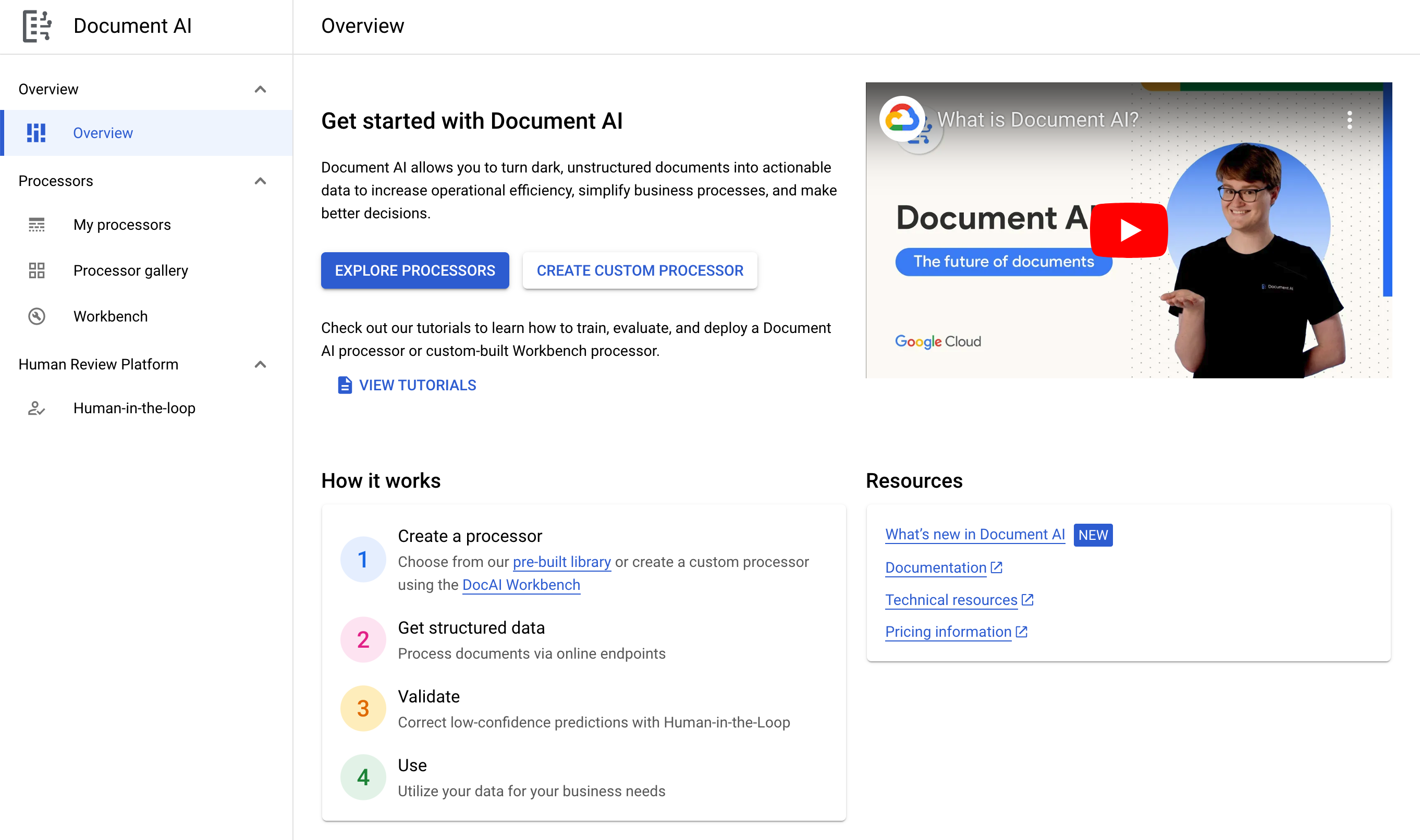
- Click Explore Processors, scroll down to Specialized and and inside Invoice Parser, click Create Processor.
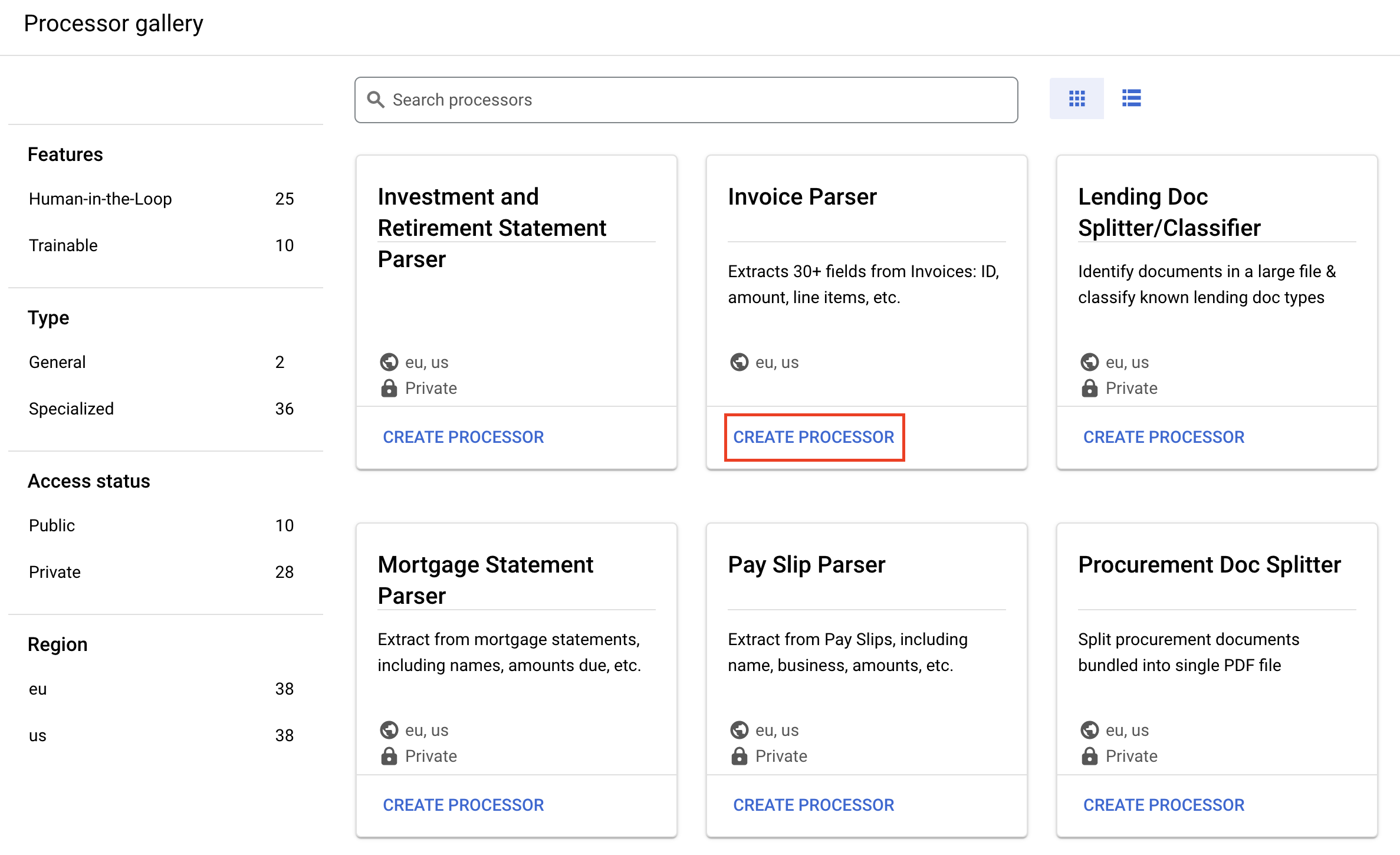
Give it the name
lab-invoice-parserand select the closest region on the list.Click Create to create your processor.
Copy your Processor ID. You must use this in your code later
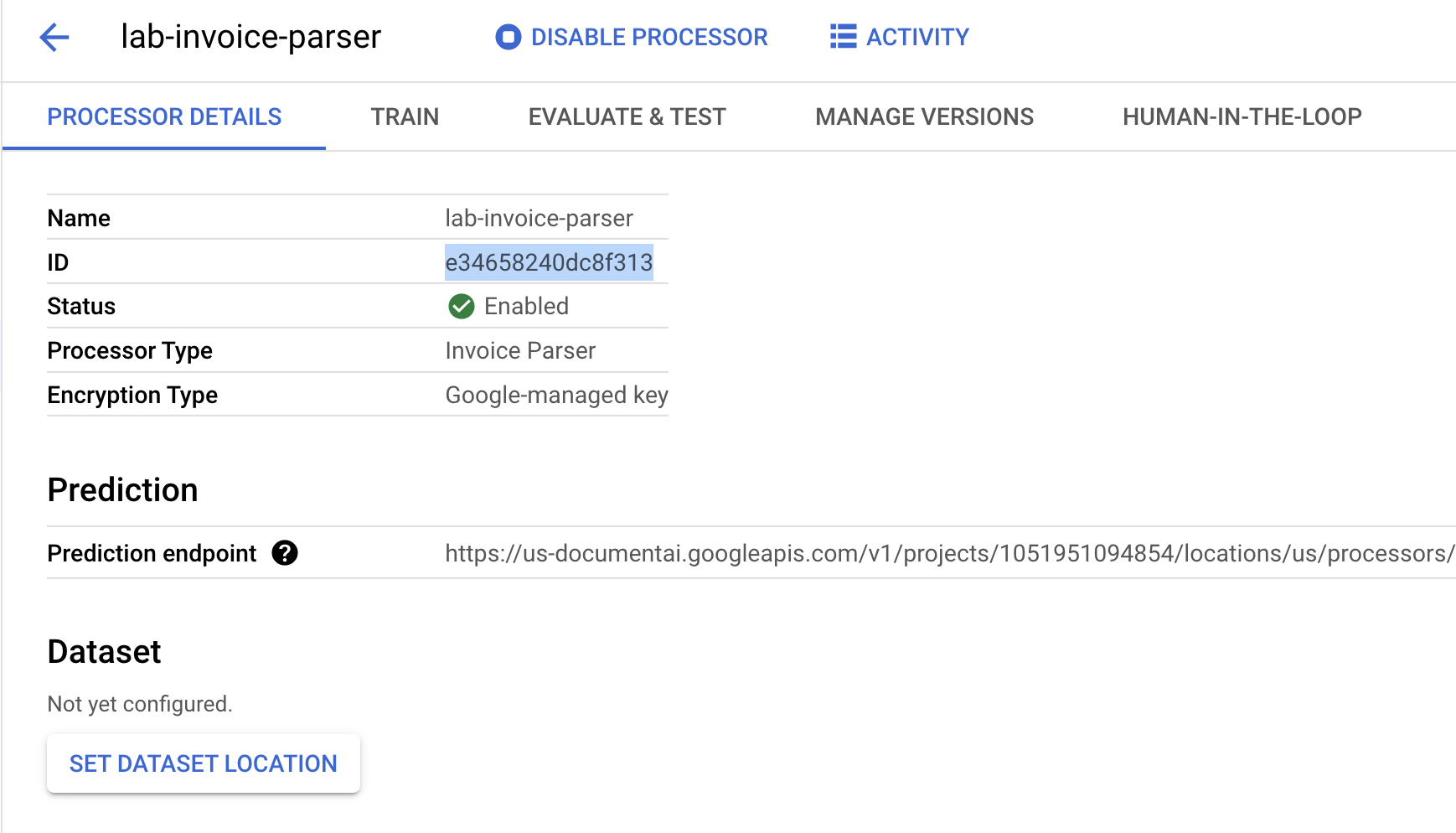
Create a processor
Download sample documents
We have a few sample documents which you can use for this lab.
- Run the following command to download the sample forms to Cloud Shell.
gcloud storage cp gs://cloud-samples-data/documentai/codelabs/specialized-processors/procurement_multi_document.pdf .

gcloud storage cp gs://cloud-samples-data/documentai/codelabs/specialized-processors/google_invoice.pdf .
Copied!
- Confirm the files are downloaded to Cloud Shell using the below command:
ls
Copied!
You should see something like this:
google_invoice.pdf procurement_multi_document.pdf
Task 3. Extract the entities
Now you can extract the schematized entities from the files, including confidence scores, properties, and normalized values.
The code for making the API request is identical to the previous step, and it can be done with online or batch requests.
You will access the following information from the entities:
Entity Type
- (e.g.
invoice_date,receiver_name,total_amount)
- (e.g.
Raw Values
- Data values as presented in the original document file.
Normalized Values
Data values in a normalized and standard format, if applicable.
Also can include enrichment from Enterprise Knowledge Graph
Confidence Values
- How "sure" the model is that the values are accurate.
Some entity types, such as line_item can also include properties which are nested entities such as line_item/unit_price and line_item/description. This example flattens out the nested structure for ease of viewing.
Invoice Parser
- In Cloud Shell, create a file called
extraction.pyand paste the following code into it:
import pandas as pd
from google.cloud import documentai_v1 as documentai


def online_process(
    project_id: str,
    location: str,
    processor_id: str,
    file_path: str,
    mime_type: str,
) -> documentai.Document:
    """
    Processes a document using the Document AI Online Processing API.
    """

    opts = {"api_endpoint": f"{location}-documentai.googleapis.com"}

    # Instantiates a client
    documentai_client = documentai.DocumentProcessorServiceClient(client_options=opts)

    # The full resource name of the processor, e.g.:
    # projects/project-id/locations/location/processor/processor-id
    # You must create new processors in the Cloud Console first
    resource_name = documentai_client.processor_path(project_id, location, processor_id)

    # Read the file into memory
    with open(file_path, "rb") as file:
        file_content = file.read()

    # Load Binary Data into Document AI RawDocument Object
    raw_document = documentai.RawDocument(content=file_content, mime_type=mime_type)

    # Configure the process request
    request = documentai.ProcessRequest(name=resource_name, raw_document=raw_document)

    # Use the Document AI client to process the sample form
    result = documentai_client.process_document(request=request)

    return result.document


PROJECT_ID = "YOUR_PROJECT_ID"
LOCATION = "YOUR_PROJECT_LOCATION"  # Format is 'us' or 'eu'
PROCESSOR_ID = "INVOICE_PARSER_ID"  # Create processor in Cloud Console

# The local file in your current working directory
FILE_PATH = "google_invoice.pdf"
# Refer to https://cloud.google.com/document-ai/docs/processors-list
# for supported file types
MIME_TYPE = "application/pdf"

document = online_process(
    project_id=PROJECT_ID,
    location=LOCATION,
    processor_id=PROCESSOR_ID,
    file_path=FILE_PATH,
    mime_type=MIME_TYPE,
)

types = []
raw_values = []
normalized_values = []
confidence = []

# Grab each key/value pair and their corresponding confidence scores.
for entity in document.entities:
    types.append(entity.type_)
    raw_values.append(entity.mention_text)
    normalized_values.append(entity.normalized_value.text)
    confidence.append(f"{entity.confidence:.0%}")

    # Get Properties (Sub-Entities) with confidence scores
    for prop in entity.properties:
        types.append(prop.type_)
        raw_values.append(prop.mention_text)
        normalized_values.append(prop.normalized_value.text)
        confidence.append(f"{prop.confidence:.0%}")

# Create a Pandas Dataframe to print the values in tabular format.
df = pd.DataFrame(
    {
        "Type": types,
        "Raw Value": raw_values,
        "Normalized Value": normalized_values,
        "Confidence": confidence,
    }
)

print(df)
Copied!
Replace
INVOICE_PARSER_IDwith the ID for the Invoice Parser Processor you created earlier and use the filegoogle_invoice.pdf.Replace
YOUR_PROJECT_IDandYOUR_PROJECT_LOCATIONwith your Google Cloud Project ID and Processor location, respectively.Run the script:
python3 extraction.py
Copied!
Your output should look something like this:
                     Type                                         Raw Value   Normalized Value Confidence
0                due_date                                      Sep 30, 2019         2019-09-30        99%
1              net_amount                                         22,379.39           22379.39        99%
2            total_amount                                         19,647.68           19647.68        99%
3            invoice_date                                      Sep 24, 2019         2019-09-24        98%
4        total_tax_amount                                          1,767.97            1767.97        94%
5           receiver_name                                       Jane Smith,                           88%
6        receiver_address   1600 Amphitheatre Pkway Mountain View, CA 94043                           77%
7              invoice_id                                         23413561D                           60%
8          freight_amount                                            199.99             199.99        60%
9            invoice_type                                                    invoice_statement        59%
10               currency                                                 $                USD        58%
11          supplier_name                                            Google             Google        37%
12              line_item                   9.99 12 12 ft HDMI cable 119.88                          100%
13   line_item/unit_price                                              9.99               9.99        95%
14     line_item/quantity                                                12                 12        75%
15  line_item/description                                  12 ft HDMI cable                           64%
16       line_item/amount                                            119.88             119.88        90%
17              line_item           12 399.99 27" Computer Monitor 4,799.88                          100%
18     line_item/quantity                                                12                 12        76%
19   line_item/unit_price                                            399.99             399.99        95%
20  line_item/description                              27" Computer Monitor                           42%
21       line_item/amount                                          4,799.88            4799.88        93%
22              line_item                Ergonomic Keyboard 12 59.99 719.88                          100%
23  line_item/description                                Ergonomic Keyboard                           42%
24     line_item/quantity                                                12                 12        75%
25   line_item/unit_price                                             59.99              59.99        94%
26       line_item/amount                                            719.88             719.88        85%
27              line_item                     Optical mouse 12 19.99 239.88                          100%
28  line_item/description                                     Optical mouse                           55%
29     line_item/quantity                                                12                 12        72%
30   line_item/unit_price                                             19.99              19.99        94%
31       line_item/amount                                            239.88             239.88        81%
32              line_item                      Laptop 12 1,299.99 15,599.88                          100%
33  line_item/description                                            Laptop                           65%
34     line_item/quantity                                                12                 12        71%
35   line_item/unit_price                                          1,299.99            1299.99        94%
36       line_item/amount                                         15,599.88           15599.88        91%
37              line_item              Misc processing fees 899.99 899.99 1                          100%
38  line_item/description                              Misc processing fees                           54%
39   line_item/unit_price                                            899.99             899.99        92%
40       line_item/amount                                            899.99             899.99        82%
41     line_item/quantity                                                 1                  1        68%
- Create a Cloud Storage bucket, and upload the generated output of the command
docai_outputs.txtto the bucket.
# Create a bucket
export PROJECT_ID=$(gcloud config get-value project)
gsutil mb gs://$PROJECT_ID-docai

# Create and upload the file
python3 extraction.py > docai_outputs.txt
gsutil cp docai_outputs.txt gs://$PROJECT_ID-docai
Copied!
Create a cloud storage bucket and upload the output file
Optional: Try out other specialized processors
You've successfully used Document AI for Procurement to classify documents and parse an invoice. Document AI also supports the other specialized solutions listed here:
You can follow the same procedure and use the same code to handle any specialized processor.
If you would like to try out the other specialized solutions, you can re-run the lab with other processor types and specialized sample documents.
Note: Some Identity, Lending, and Contract processors are currently in limited access. If you have a business use case for these processors, please fill out and submit the appropriate request form before proceeding.
Sample Documents
Here are some sample documents you can use to try out the other specialized processors.
| Solution | Processor Type | Document |
| Identity | US Driver License Parser | Download license.pdf |
| Lending | Lending Splitter & Classifier | Download lending_multi_document.pdf |
| Lending | W9 Parser | Download W9.pdf |
| Contracts | Contract Parser | Download CymbalContract.pdf |
You can find other sample documents and processor output in the documentation.
Solution of Lab
curl -LO raw.githubusercontent.com/ePlus-DEV/storage/refs/heads/main/labs/GSP1140/lab.sh
source lab.sh
Script Alternative
curl -LO raw.githubusercontent.com/QUICK-GCP-LAB/2-Minutes-Labs-Solutions/refs/heads/main/Using%20Specialized%20Processors%20with%20Document%20AI%20Python/gsp1140.sh
sudo chmod +x *.sh
./*.sh





