
Utilize the Streamlit Framework with Cloud Run and the Gemini API in Vertex AI - GSP1229

Overview
In this lab, you will learn how to build a generative AI application using the Gemini API in Vertex AI and deploying it on Cloud Run. You'll use the Streamlit framework to create an interactive interface for generating stories.
The lab involves running the application locally in Cloud Shell to test its functionality and then deploying it to Cloud Run for scalable serving. You'll gain practical experience integrating Gemini with a user interface and leveraging Cloud Run for efficient deployment.
Gemini
Gemini is a family of powerful generative AI models developed by Google DeepMind, capable of understanding and generating various forms of content, including text, code, images, audio, and video.
Gemini API in Vertex AI
The Gemini API in Vertex AI provides a unified interface for interacting with Gemini models. This allows developers to easily integrate these powerful AI capabilities into their applications. For the most up-to-date details and specific features of the latest versions, please refer to the official Gemini documentation.
Gemini Models
Gemini Pro: Designed for complex reasoning, including:
Analyzing and summarizing large amounts of information.
Sophisticated cross-modal reasoning (across text, code, images, etc.).
Effective problem-solving with complex codebases.
Gemini Flash: Optimized for speed and efficiency, offering:
Sub-second response times and high throughput.
High quality at a lower cost for a wide range of tasks.
Enhanced multimodal capabilities, including improved spatial understanding, new output modalities (text, audio, images), and native tool use (Google Search, code execution, and third-party functions).
Prerequisites
Before starting this lab, you should be familiar with:
Basic Python programming.
General API concepts.
Running Python code in a Jupyter notebook on Vertex AI Workbench.
Objectives
In this lab, you will learn how to:
Integrate Gemini API in Vertex AI with applications
Build and deploy the developed sample application on Google Cloud Run
Use the Streamlit framework to build a Cloud Run application
Setup and requirements
Before you click the Start Lab button
Read these instructions. Labs are timed and you cannot pause them. The timer, which starts when you click Start Lab, shows how long Google Cloud resources are made available to you.
This hands-on lab lets you do the lab activities in a real cloud environment, not in a simulation or demo environment. It does so by giving you new, temporary credentials you use to sign in and access Google Cloud for the duration of the lab.
To complete this lab, you need:
- Access to a standard internet browser (Chrome browser recommended).
Note: Use an Incognito (recommended) or private browser window to run this lab. This prevents conflicts between your personal account and the student account, which may cause extra charges incurred to your personal account.
- Time to complete the lab—remember, once you start, you cannot pause a lab.
Note: Use only the student account for this lab. If you use a different Google Cloud account, you may incur charges to that account.
How to start your lab and sign in to the Google Cloud console
Click the Start Lab button. If you need to pay for the lab, a dialog opens for you to select your payment method. On the left is the Lab Details pane with the following:
The Open Google Cloud console button
Time remaining
The temporary credentials that you must use for this lab
Other information, if needed, to step through this lab
Click Open Google Cloud console (or right-click and select Open Link in Incognito Window if you are running the Chrome browser).
The lab spins up resources, and then opens another tab that shows the Sign in page.
Tip: Arrange the tabs in separate windows, side-by-side.
Note: If you see the Choose an account dialog, click Use Another Account.
If necessary, copy the Username below and paste it into the Sign in dialog.
student-02-8f4279ef6619@qwiklabs.netCopied!
You can also find the Username in the Lab Details pane.
Click Next.
Copy the Password below and paste it into the Welcome dialog.
OiCW3eaW0OzzCopied!
You can also find the Password in the Lab Details pane.
Click Next.
Important: You must use the credentials the lab provides you. Do not use your Google Cloud account credentials.
Note: Using your own Google Cloud account for this lab may incur extra charges.
Click through the subsequent pages:
Accept the terms and conditions.
Do not add recovery options or two-factor authentication (because this is a temporary account).
Do not sign up for free trials.
After a few moments, the Google Cloud console opens in this tab.
Note: To access Google Cloud products and services, click the Navigation menu or type the service or product name in the Search field.

Task 1. Build and Deploy the Application to Cloud Run
In this section, you will deploy the Streamlit Application in Cloud Run.
Clone the Repository
Open a new Cloud Shell terminal by clicking on the Cloud Shell icon in the top right corner of the Cloud console.
Run the following commands to clone the repo and navigate to
gemini-streamlit-cloudrundirectory in Cloud Shell using the following commands.
git clone https://github.com/GoogleCloudPlatform/generative-ai.git --depth=1
Copied!
cd generative-ai/gemini/sample-apps/gemini-streamlit-cloudrun
Copied!
To run the Streamlit Application on Cloud Run, you will need to perform some additional steps.
Configuration
- Setup the Python virtual environment and install the dependencies:
python3 -m venv gemini-streamlit
source gemini-streamlit/bin/activate
pip install -r requirements.txt
Copied!
- Your application requires access to two environment variables:
GOOGLE_CLOUD_PROJECT: This the Google Cloud project ID.GOOGLE_CLOUD_REGION: This is the region in which you are deploying your Cloud Run app.
These variables are needed since the Vertex AI initialization needs the Google Cloud project ID and the region. The specific code line from the app.py function is shown here: vertexai.init(project=PROJECT_ID, location=LOCATION)
In Cloud Shell, execute the following commands:
GOOGLE_CLOUD_PROJECT='qwiklabs-gcp-01-caa374515c01'
GOOGLE_CLOUD_REGION='us-central1'
Copied!
- You will now build the Docker image for the application and push it to Artifact Registry. To do this, you will need one environment variable set that will point to the Artifact Registry name. The commands below will create this Artifact Registry repository for you.
Note: This step will take several minutes to complete.
- In Cloud Shell, execute the following command:
AR_REPO='gemini-repo'
SERVICE_NAME='gemini-streamlit-app'
gcloud artifacts repositories create "$AR_REPO" --location="$GOOGLE_CLOUD_REGION" --repository-format=Docker
gcloud builds submit --tag "$GOOGLE_CLOUD_REGION-docker.pkg.dev/$GOOGLE_CLOUD_PROJECT/$AR_REPO/$SERVICE_NAME"
Copied!
Output:
DONE
--------------------------------------------------------------------------------
ID                                    CREATE_TIME                DURATION  SOURCE                                                                                                     IMAGES                                                                                              STATUS
a601ffd1-c282-43d2-942c-53cc13f43bf2  2023-12-18T11:37:30+00:00  2M29S     gs://qwiklabs-gcp-00-eb090e9513e8_cloudbuild/source/1702899440.87287-549e1a0cc5644b3c9535ff57f4a63d02.tgz  us-central1-docker.pkg.dev/qwiklabs-gcp-00-eb090e9513e8/gemini-repo/gemini-streamlit-app (+1 more)  SUCCESS
- The final step is to deploy the service in Cloud Run with the image that we had built and had pushed to the Artifact Registry in the previous step.
gcloud run deploy "$SERVICE_NAME" \
  --port=8080 \
  --image="$GOOGLE_CLOUD_REGION-docker.pkg.dev/$GOOGLE_CLOUD_PROJECT/$AR_REPO/$SERVICE_NAME" \
  --allow-unauthenticated \
  --region=$GOOGLE_CLOUD_REGION \
  --platform=managed  \
  --project=$GOOGLE_CLOUD_PROJECT \
  --set-env-vars=GOOGLE_CLOUD_PROJECT=$GOOGLE_CLOUD_PROJECT,GOOGLE_CLOUD_REGION=$GOOGLE_CLOUD_REGION
Copied!
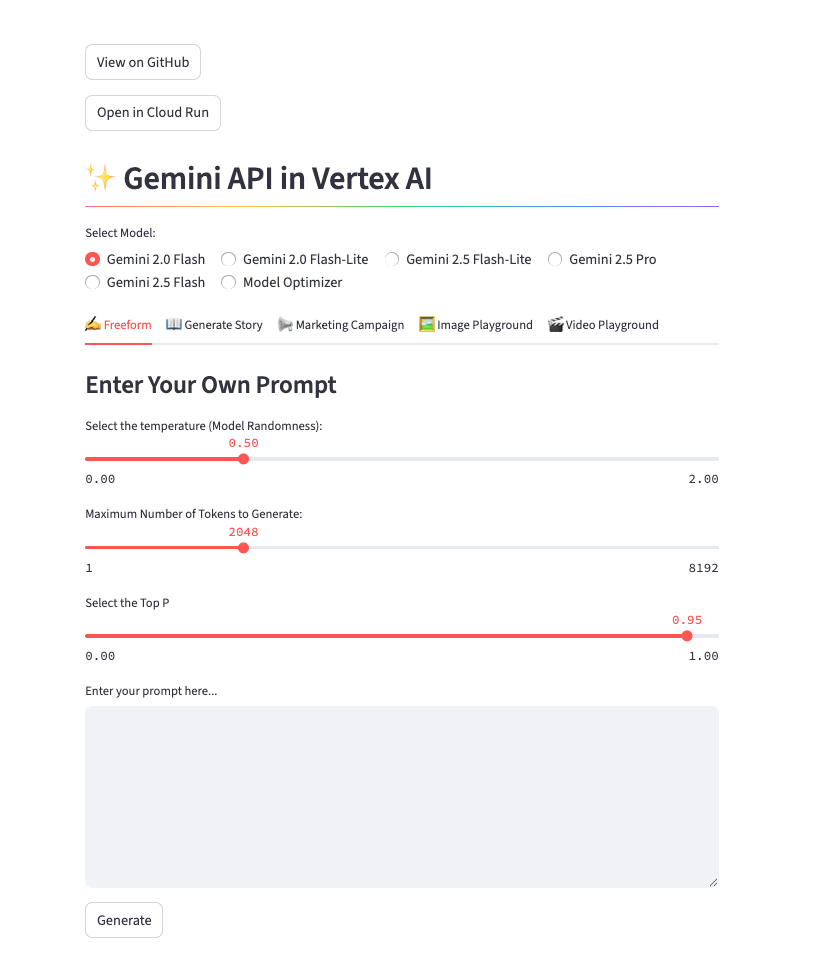
On successful deployment, you will be provided a URL to the Cloud Run service. You can visit that in the browser to view the Cloud Run application that you just deployed.
Output:
⠼ Deploying new service... Done.

✓ Deploying new service... Done.

Done.
Service [gemini-streamlit-app] revision [gemini-streamlit-app-00001-srg] has been deployed and is serving 100 percent of traffic. Service URL: https://gemini-streamlit-app-hc2gb6hsia-uc.a.run.app
Choose the functionality that you would like to check out and the application will prompt the Gemini API in Vertex AI and display the responses.
Click Check my progress to verify the objective.
Build and Deploy the Application to Cloud Run
Solution of Lab
Quick
curl -LO raw.githubusercontent.com/ePlus-DEV/storage/refs/heads/main/labs/GSP1229/lab.sh
source lab.sh

Manual
About the author
A passionate full-stack developer from @ePlus.DEV
Comments
Join the discussionNo comments yet. Be the first to comment.
Tip & Tricks
Quick and practical tips to help users optimize tasks, improve skills, and solve common problems effectively across various areas like tech, lifestyle, productivity, and more.