Build a Secure Google Cloud Network: Challenge Lab - GSP322

A passionate full-stack developer from @ePlus.DEV
Introduction
In a challenge lab you’re given a scenario and a set of tasks. Instead of following step-by-step instructions, you will use the skills learned from the labs in the course to figure out how to complete the tasks on your own! An automated scoring system (shown on this page) will provide feedback on whether you have completed your tasks correctly.
When you take a challenge lab, you will not be taught new Google Cloud concepts. You are expected to extend your learned skills, like changing default values and reading and researching error messages to fix your own mistakes.
To score 100% you must successfully complete all tasks within the time period!
This lab is recommended for students who have enrolled in the Build a Secure Google Cloud Network skill badge. Are you ready for the challenge?
Setup
Before you click the Start Lab button
Read these instructions. Labs are timed and you cannot pause them. The timer, which starts when you click Start Lab, shows how long Google Cloud resources are made available to you.
This hands-on lab lets you do the lab activities in a real cloud environment, not in a simulation or demo environment. It does so by giving you new, temporary credentials you use to sign in and access Google Cloud for the duration of the lab.
To complete this lab, you need:
- Access to a standard internet browser (Chrome browser recommended).
Note: Use an Incognito (recommended) or private browser window to run this lab. This prevents conflicts between your personal account and the student account, which may cause extra charges incurred to your personal account.
- Time to complete the lab—remember, once you start, you cannot pause a lab.
Note: Use only the student account for this lab. If you use a different Google Cloud account, you may incur charges to that account.
Challenge scenario
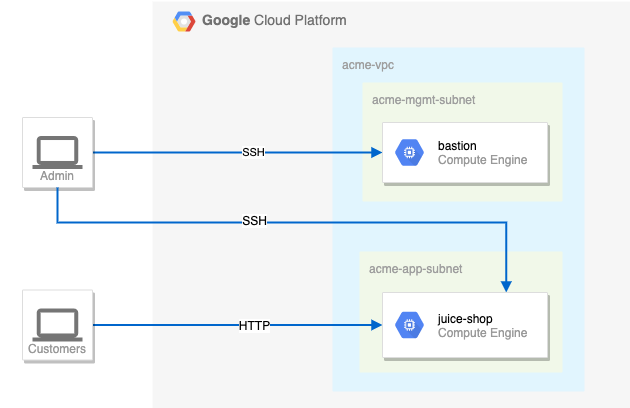
You are a security consultant brought in by Jeff, who owns a small local company, to help him with his very successful website (juice-shop). Jeff is new to Google Cloud and had his neighbour's son set up the initial site. The neighbour's son has since had to leave for college, but before leaving, he made sure the site was running.
Below is the current set up:
Your challenge
You need to create the appropriate security configuration for Jeff's site. Your first challenge is to set up firewall rules and virtual machine tags. You also need to ensure that SSH is only available to the bastion via IAP.
For the firewall rules, make sure that:
The bastion host does not have a public IP address.
You can only SSH to the bastion and only via IAP.
You can only SSH to
juice-shopvia the bastion.Only HTTP is open to the world for
juice-shop.
Tips and tricks:
Pay close attention to the network tags and the associated VPC firewall rules.
Be specific and limit the size of the VPC firewall rule source ranges.
Overly permissive permissions will not be marked correct.
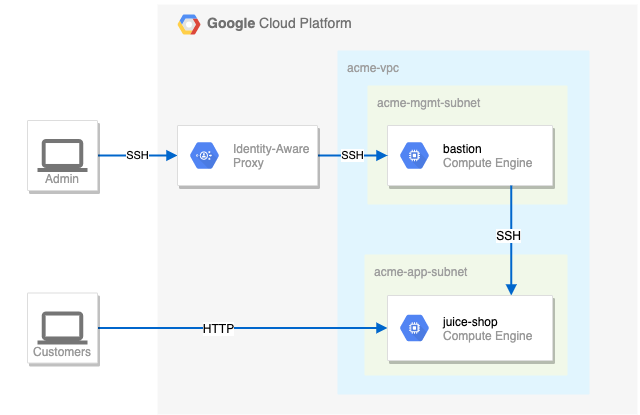
Suggested order of action.
- Check the firewall rules. Remove the overly permissive rules.
Remove the overly permissive rules
- Navigate to Compute Engine in the Cloud console and identify the bastion host. The instance should be stopped. Start the instance.
Start the bastion host instance
- The bastion host is the one machine authorized to receive external SSH traffic. Create a firewall rule that allows SSH (tcp/22) from the IAP service. The firewall rule must be enabled for the bastion host instance using a network tag of
allow-ssh-iap-ingress-ql-595.
Create a firewall rule that allows SSH (tcp/22) from the IAP service and add network tag on bastion
- The
juice-shopserver serves HTTP traffic. Create a firewall rule that allows traffic on HTTP (tcp/80) to any address. The firewall rule must be enabled for the juice-shop instance using a network tag ofallow-http-ingress-ql-595.
Create a firewall rule that allows traffic on HTTP (tcp/80) to any address and add network tag on juice-shop
- You need to connect to
juice-shopfrom the bastion using SSH. Create a firewall rule that allows traffic on SSH (tcp/22) fromacme-mgmt-subnetnetwork address. The firewall rule must be enabled for thejuice-shopinstance using a network tag ofallow-ssh-internal-ingress-ql-595.
Create a firewall rule that allows traffic on SSH (tcp/22) from acme-mgmt-subnet
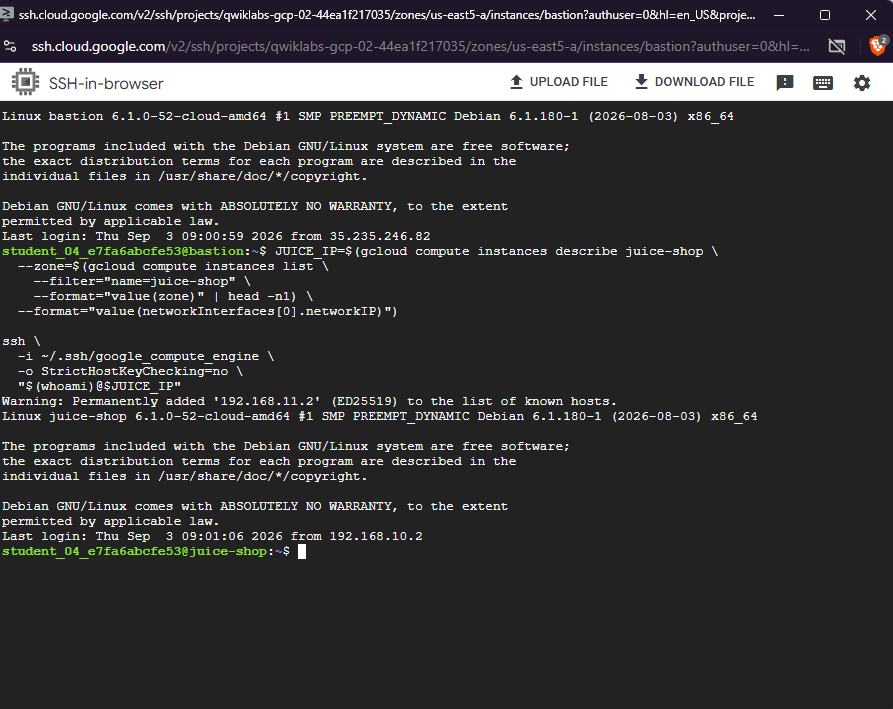
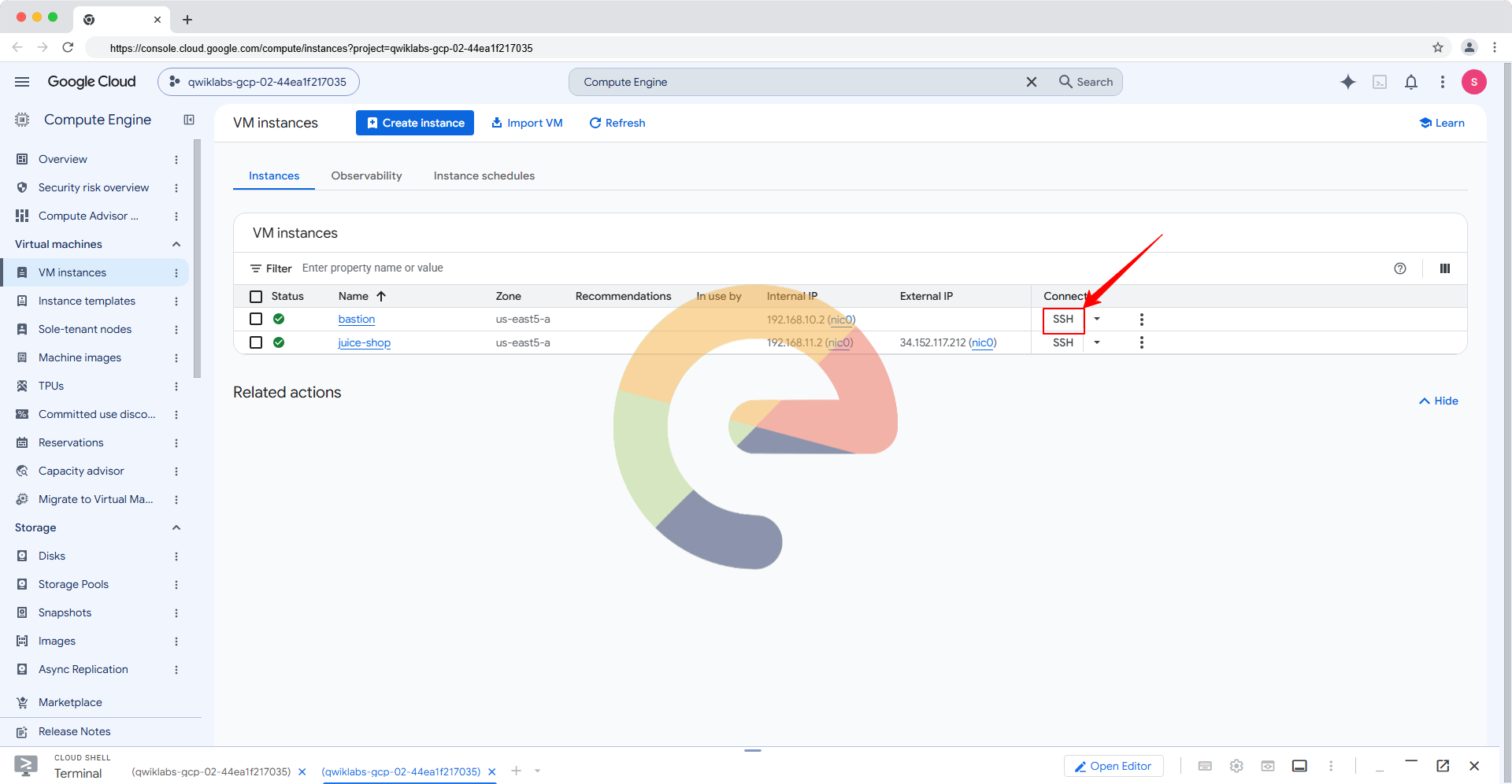
- In the Compute Engine instances page, click the SSH button for the bastion host. Once connected, SSH to
juice-shop.
Hint: If you're having difficulties with the compute ssh connection or IAP tunnel, make use of the --troubleshoot flag.
SSH to bastion host via IAP and juice-shop via bastion
Solution of Lab
Quick
https://www.youtube.com/watch?v=AfFUhCfKjTU
curl -LO raw.githubusercontent.com/ePlus-DEV/storage/refs/heads/main/labs/GSP322/lab.sh
source lab.sh
Script Alternative
curl -LO https://raw.githubusercontent.com/manavyugaitech/Welcome/main/Build%20a%20Secure%20Google%20Cloud%20Network%3A%20Challenge%20Lab/Meow.sh
sudo chmod +x Meow.sh
./Meow.sh


Task 6: Compute Engine → VM instances
PROJECT_ID=$(gcloud config get-value project 2>/dev/null)

JUICE_ZONE=$(gcloud compute instances list \
  --project="$PROJECT_ID" \
  --filter="name=juice-shop" \
  --format="value(zone)" \
  | head -n1)

gcloud compute ssh juice-shop \
  --project="$PROJECT_ID" \
  --zone="$JUICE_ZONE" \
  --internal-ip