
App Dev: Storing Image and Video Files in Cloud Storage v1.1 (Solution)

A passionate full-stack developer from @ePlus.DEV
Overview
In this lab, you will enhance the online Quiz application to work with images and videos. You will store files as objects in a Cloud Storage bucket.
The Quiz application user interface has been changed to include a file input in the add question form, and the handler has been modified to receive the image data in the server-side application.
You will add the code that stores the uploaded file into Cloud Storage, make the object publicly available, and then store the object URL along with other application data in Google Cloud Datastore.
Setup and requirements
In this lab, you will learn how to perform the following tasks:
Create a Cloud Storage bucket.
Review file upload UI and code changes.
Write code to store uploaded file data into Cloud Storage.
Task 1. Reviewing the case study application
In this section, you will access Cloud Shell, clone the git repository containing the Quiz application, and run the application.
Clone source code in Cloud Shell
- In GCP console, on the top right toolbar, click the Open Cloud Shell button.
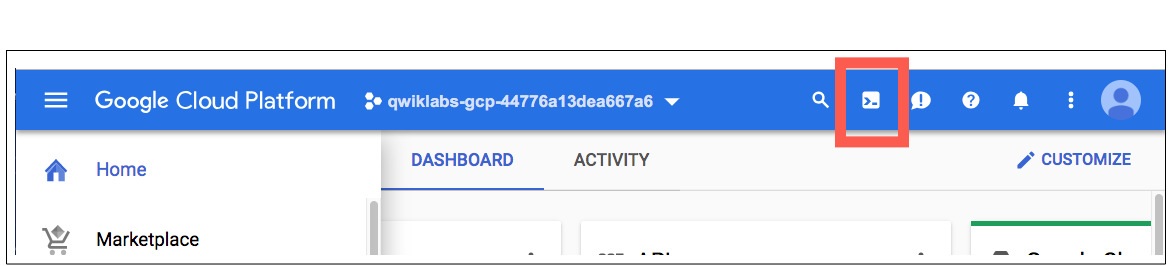
- Click Continue.
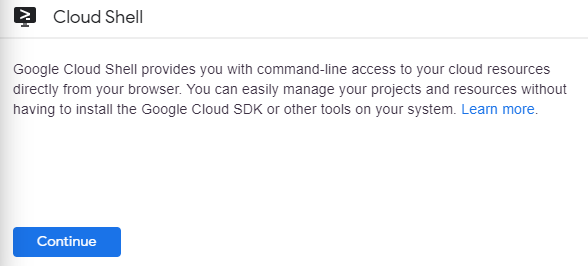
It takes a few moments to provision and connect to the environment. When you are connected, you are already authenticated, and the project is set to your PROJECT_ID. For example:

- Clone the repository for the class:
git clone https://github.com/GoogleCloudPlatform/training-data-analyst
Configure and run the case study application
- To change the working directory, execute the following command:
cd ~/training-data-analyst/courses/developingapps/nodejs/cloudstorage/start
- To configure the application, execute the following command:
. prepare_environment.sh
Note: This script file:
Creates an App Engine application.
Exports an environment variable,
GCLOUD_PROJECT.Runs
npm install.Creates entities in Cloud Datastore.
Prints out the Google Cloud Platform Project ID.
- To run the application, execute the following command:
npm start
Click Check my progress to verify the objective.
Configure the case study application
Check my progress
Review the changes to the case study application
To view the application, click Web preview > Preview on port 8080.
Click the Create Question link in the toolbar.
Note: You should see a simple form that contains textboxes for the question and answers and radio buttons to select the correct answer. The form has a new file upload field that will be used to upload either image or video files.
Task 2. Examining the case study application code
In this section, you will use the Cloud Shell text editor to review the case study application code.
Employ the Cloud Shell Editor
In Cloud Shell, click on the Open Editor icon.
Navigate to the /training-data-analyst/courses/developingapps/nodejs/cloudstorage/start folder using the file browser panel on the left side of the editor.
Review the express web application
- Select the add.pug file in the .../server/web-app/views/questions folder.
Note: This file contains the pug template for the Create Question form.
Notice how the form has been modified to use multipart/form-data as the enc-type, and there are two new form controls:
A file upload control called
imageA hidden field called
imageUrl
- Select the questions.js file in the .../server/web-app folder.
Note: This file has been modified so that the POST handler chains together three distinct middleware calls:
Configures Multer to accept a single image file from a form field called
image. Multer is a popular Express middleware package for handling file uploads. The Multer handler consumes the file multipart upload from the browser and holds the file data in memory.Consumes the file processed by Multer. This handler is where you will write the Cloud Storage code to upload a file, make it publicly available, and store the public URL for the object.
Consumes the public URL to store the data into Cloud Datastore. You already wrote the code to store an entity in Cloud Datastore in the previous lab!
- Select the .../server/gcp/cloudstorage.js file.
Note: This is the file where you will write code to save image file data into Cloud Storage.
Task 3. Creating a Cloud Storage bucket
In this section, you will create a Cloud Storage bucket and export an environment variable that references it.
Create a Cloud Storage bucket
Return to the Cloud Shell command line by clicking on the Open Terminal icon, and stop the application by pressing Ctrl+C.
To create a Cloud Storage bucket named
<Project ID>-media, execute the following command:
gsutil mb gs://$DEVSHELL_PROJECT_ID-media
Note: You can create a bucket using the gsutil mb command, passing through the name of the bucket as gs://BUCKET_NAME You can use $DEVSHELL_PROJECT_ID as the bucket name prefix followed by -media.
- To export the Cloud Storage bucket name as an environment variable named
GCLOUD_BUCKET, execute the following command:
export GCLOUD_BUCKET=$DEVSHELL_PROJECT_ID-media
Note: Recall that the application makes use of environment variables for configuration. This allows the development team to deploy the application into development, test, staging, and production just by changing these variables.
Click Check my progress to verify the objective.
Create a Cloud Storage bucket
Check my progress
Task 4. Adding objects to Cloud Storage
In this section, you will write code to save uploaded files into Cloud Storage.
Note: Update code within the sections marked as follows:
// TODO
// END TODO
To maximize your learning, review the code, inline comments, and related API documentation.
Note: You can view the API documentation for Cloud Storage in the Google Cloud Storage: Node.js Client reference.
Import and use the NodeJS Cloud Storage module
In Cloud Shell, click on the Open Editor icon. Then move to the top of the ...gcp/cloudstorage.js file.
Load the
'@google-cloud/storagemodule, and assign it to a constant namedStorage.Use the
Storage(...)factory to construct a Cloud Storage client namedstorage.Declare a string constant named
GCLOUD_BUCKET,and initialize it with the name of the bucket you previously exported as an environment variable.Declare a constant named
bucketto reference the Cloud Storage bucket.
cloudstorage.js
// TODO: Load the module for Cloud Storage

const Storage = require('@google-cloud/storage');

// END TODO

// TODO: Create the storage client
// The Storage(...) factory function accepts an options
// object which is used to specify which project's Cloud
// Storage buckets should be used via the projectId
// property.
// The projectId is retrieved from the config module.
// This module retrieves the project ID from the
// GCLOUD_PROJECT environment variable.

const storage = Storage({
 projectId: config.get('GCLOUD_PROJECT')
});

// END TODO

// TODO: Get the GCLOUD_BUCKET environment variable
// Recall that earlier you exported the bucket name into an
// environment variable.
// The config module provides access to this environment
// variable so you can use it in code

const GCLOUD_BUCKET = config.get('GCLOUD_BUCKET');

// END TODO

// TODO: Get a reference to the Cloud Storage bucket

const bucket = storage.bucket(GCLOUD_BUCKET);

// END TODO
Write code to send a file to Cloud Storage
In the
sendUploadToGCS(req, res, next)handler, use the Cloud Storage client to upload a file to your Cloud Storage bucket and make it publicly available.Get a reference to a Cloud Storage file object in the bucket.
Create a writeable stream to send data to the Cloud Storage object. Pass through the MIME type for the object.
Attach two event handlers to the stream: the first will handle errors, the second will be invoked when the data has finished uploading.
In the error event handler, invoke the next Express middleware.
In the finish event handler, make the file public, and set a new property on the Datastore entity that references the new public URL.
At the end of the
sendUploadToGCS(req, res, next)handler, to upload the file's data into Cloud Storage, write the file to the stream.
cloudstorage.js
function sendUploadToGCS (req, res, next) {

// The existing code in the handler checks to see if there
// is a file property on the HTTP request - if a file has
// been uploaded, then Multer will have created this
// property in the preceding middleware call.

  if (!req.file) {
    return next();
  }

// In addition, a unique object name, oname,  has been
// created based on the file's original name. It has a
// prefix generated using the current date and time.
// This should ensure that a new file upload won't
// overwrite an existing object in the bucket
  const oname = Date.now() + req.file.originalname;
  // TODO: Get a reference to the new object

  const file = bucket.file(oname);

  // END TODO

  // TODO: Create a stream to write the file into
  // Cloud Storage
// The uploaded file's MIME type can be retrieved using
// req.file.mimetype.
// Cloud Storage metadata can be used for many purposes,
// including establishing the type of an object.

  const stream = file.createWriteStream({
    metadata: {
      contentType: req.file.mimetype
    }
  });

  // END TODO

  // TODO: Attach two event handlers (1) error
  // Event handler if there's an error when uploading

  stream.on('error', (err) => {
    // TODO: If there's an error move to the next handler

    next(err);

    // END TODO
  });

  // END TODO

  // TODO: Attach two event handlers (2) finish
  // The upload completed successfully
  stream.on('finish', () => {

    // TODO: Make the object publicly accessible
    file.makePublic().then(() => {
      // TODO: Set a new property on the file for the
      // public URL for the object

// Cloud Storage public URLs are in the form:
// https://storage.googleapis.com/[BUCKET]/[OBJECT]
// Use an ECMAScript template literal (`https://...`)to
// populate the URL with appropriate values for the bucket
// ${GCLOUD_BUCKET} and object name ${oname}

      req.file.cloudStoragePublicUrl = `https://storage.googleapis.com/${GCLOUD_BUCKET}/${oname}`;

// END TODO

      // TODO: Invoke the next middleware handler

      next();

      // END TODO
    });
  });

  // END TODO

  // TODO: End the stream to upload the file's data

  stream.end(req.file.buffer);

  // END TODO
}
Run the application and create a Cloud Storage object
Save the ...gcp/cloudstorage.js file, and then return to the Cloud Shell command by clicking on the Open Terminal icon.
Start the application by typing
npm start.Download the Google Cloud Storage Logo to your local machine.
In Cloud Shell, click Web preview > Preview on port 8080 to preview the Quiz application.
Click the Create Question link.
Complete the form with the following values, and then click Save.
| Form Field | Value |
| Author | Your Name |
| Quiz | Google Cloud Platform |
| Title | Which product does this logo relate to? |
| Image | Upload the Google-Cloud-Storage-Logo.svg file you previously downloaded |
| Answer 1 | App Engine |
| Answer 2 | Cloud Storage (select the Answer 2 radio button!) |
| Answer 3 | Compute Engine |
| Answer 4 | Container Engine |
Return to the Cloud Console and click on Navigation menu > Cloud Storage.
On the Cloud Storage > Buckets page, click the correct bucket (named
<Project ID>-media).
Note: You should see your new object named #UniqueNumber#Google-Cloud-Storage-Logo.svg.
Click Check my progress to verify the objective.
Run the application and create a Cloud Storage object
Check my progress
Run the client application and test the Cloud Storage public URL
- Add
/api/quizzes/gcpto the end of the application's URL.
Note: You should see that JSON data has been returned to the client corresponding to the Question you added in the web application. The imageUrl property should have a value corresponding to the object in Cloud Storage.
Return to the application home page and click the Take Test link.
Click GCP, and answer each question.
Note: When you get to the question you just added, you should see the image has been formatted inside the client-side web application!
Review
Choose the correct statements about Cloud Storage.
Cloud Storage bucket names must be globally unique.
Cloud Storage object URIs must be globally unique.
Cloud Storage bucket names must be unique for each billing account.
Cloud Storage object paths within a bucket must be unique.
Which object and method are causing data to be sent to Cloud Storage?
Storage and bucket(...)
bucket and file(...)
file and end(...)
Solution of Lab
curl -LO https://raw.githubusercontent.com/ePlus-DEV/storage/refs/heads/main/labs/app-dev-storing-image-and-video-files-in-cloud-storage-v1-1/lab.sh
sudo chmod +x lab.sh
./lab.sh





