
SingleStore on Google Cloud - GSP1096

A passionate full-stack developer from @ePlus.DEV
Overview
This lab gives you hands-on experience deploying SingleStoreDB and combining it with Google Cloud's cloud native products like Pub/Sub, Dataflow and Cloud Storage. To demonstrate these product features, work with the NYC public taxi dataset.
The flow of the lab is to first deploy the SingleStoreDB through your local browser and create the appropriate schema. Then, use Pub/Sub to push the data to Cloud Storage in real time with the help of Dataflow. The data generated and stored in object storage is consumed using SingleStoreDB's native pipeline. Once SingleStoreDB has ingested the data, you run queries and interact with SingleStore.
What you'll learn
How to log in and navigate the Google Cloud
How to create a SingleStore DB instance/cluster
How to use Cloud Shell to connect and create schema on SingleStoreDB
How to create Pub/Sub topics and subscriptions, and how to pull and push data to other services
How to create a Dataflow streaming job
Use SingleStore native pipeline to load data from object storage
How to run queries and interact with your data in SingleStore
Prerequisites
- Familiarity with Google Cloud and SingleStore is helpful but is not required.
Setup and requirements
Before you click the Start Lab button
Read these instructions. Labs are timed and you cannot pause them. The timer, which starts when you click Start Lab, shows how long Google Cloud resources are made available to you.
This hands-on lab lets you do the lab activities in a real cloud environment, not in a simulation or demo environment. It does so by giving you new, temporary credentials you use to sign in and access Google Cloud for the duration of the lab.
To complete this lab, you need:
- Access to a standard internet browser (Chrome browser recommended).
Note: Use an Incognito (recommended) or private browser window to run this lab. This prevents conflicts between your personal account and the student account, which may cause extra charges incurred to your personal account.
- Time to complete the lab—remember, once you start, you cannot pause a lab.
Note: Use only the student account for this lab. If you use a different Google Cloud account, you may incur charges to that account.
How to start your lab and sign in to the Google Cloud console
Click the Start Lab button. If you need to pay for the lab, a dialog opens for you to select your payment method. On the left is the Lab Details pane with the following:
The Open Google Cloud console button
Time remaining
The temporary credentials that you must use for this lab
Other information, if needed, to step through this lab
Click Open Google Cloud console (or right-click and select Open Link in Incognito Window if you are running the Chrome browser).
The lab spins up resources, and then opens another tab that shows the Sign in page.
Tip: Arrange the tabs in separate windows, side-by-side.
Note: If you see the Choose an account dialog, click Use Another Account.
If necessary, copy the Username below and paste it into the Sign in dialog.
student-04-be435475f50c@qwiklabs.netYou can also find the Username in the Lab Details pane.
Click Next.
Copy the Password below and paste it into the Welcome dialog.
80gD8rwMIpq3You can also find the Password in the Lab Details pane.
Click Next.
Important: You must use the credentials the lab provides you. Do not use your Google Cloud account credentials.
Note: Using your own Google Cloud account for this lab may incur extra charges.
Click through the subsequent pages:
Accept the terms and conditions.
Do not add recovery options or two-factor authentication (because this is a temporary account).
Do not sign up for free trials.
After a few moments, the Google Cloud console opens in this tab.
Note: To access Google Cloud products and services, click the Navigation menu or type the service or product name in the Search field.

Task 1. Launch your own SingleStore Cluster
At this point you should be logged into the Google Cloud in an Incognito window.
- In another tab in the Incognito window that you have open, go to the SingleStore Portal. You should see the below page:
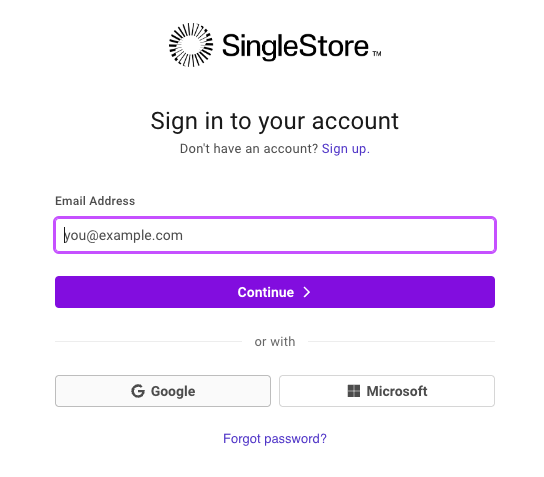
Click Sign in with Google and choose the Qwiklabs Username and Password from the lab.
Click Continue to Sign in to Single Store.
Check the checkbox for Accept Terms of Service & Privacy Policy and click Continue.
In the Add your details screen, select a Job Title and Country and click Continue.
In the What's your data stack screen, select one of the options or just click Continue.
Click View my Deployment to go to the SingleStore Customer Portal.
Click Start Using SingleStore, When you see Your free starter workspace is ready!
Create the Workspace
On the upper left corner click + Create New and Select Deployment
On the Create Workspace page, configure the following settings:
Workspace Group Name: Workshop
Cloud Provider: GCP
Region: US East 4 (N.Virginia), this should be the default, if not, change accordingly.
Your configuration should look like this:
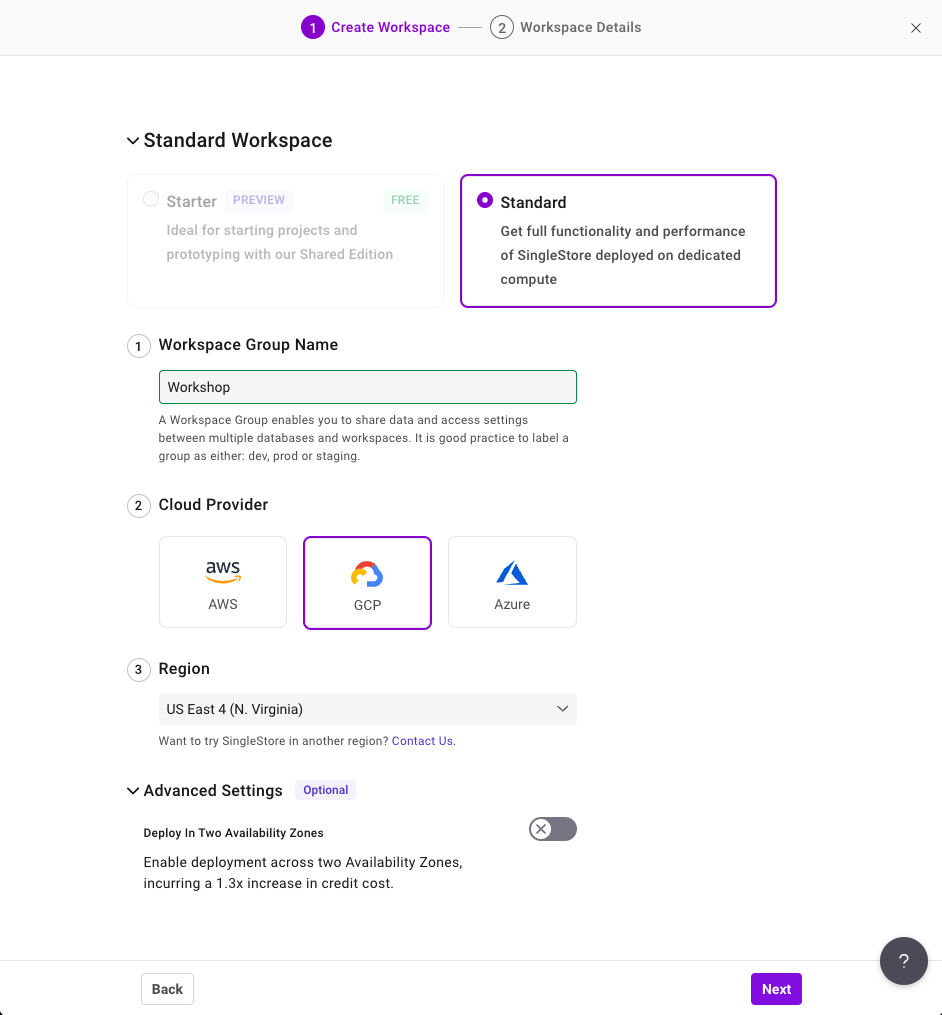
Click Next.
On the Workspace Details page, leave the default settings and click Create Workspace.
Wait a few minutes as your workspace spins up. It will generate a sample database for you, but we are not going to use it for this lab.
Task 2. Connecting SingleStore and Google Cloud
Before connecting to the SingleStore Workspace, navigate back to the Google Cloud Console.
Open a new Cloud Shell window by clicking the icon in the top right corner of the console. If prompted click Continue.
In Cloud Shell, run the following commands to clone the GitHub repository to download the code for the workshop.
git clone https://github.com/mlochbihler/singlestore-gcp-looker-devday-01
cd singlestore-gcp-looker-devday-01/section_b
- Go back to the SingleStore Portal. Once your workspace is initialized, click the dropdown arrow next to Connect and select CLI Client.
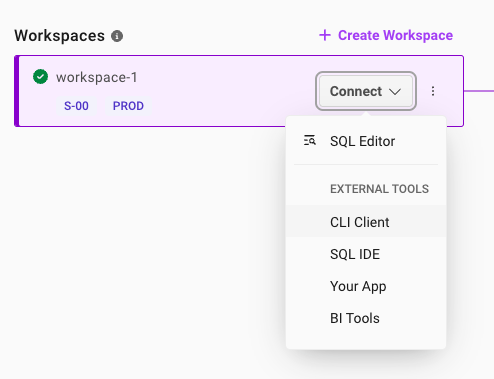
On the Connect to Workspace page, first copy the password that was generated for you. There is a copy icon next to the password. It is a good idea to store this in a local file, you will need it later in this lab.
Click the Copy icon next to the MySQL Command. This will copy the command to your clipboard.
The MySQL command should resemble: mysql -u admin -h svc-b675ae2f-b129-4baf-86ca-0a03c2c31d19-dml.gcp-virginia-1.svc.singlestore.com -P 3306 --default-auth=mysql_native_password --password
You might see the password you just created in the mysql command above. This will only happen in the first time you open that window. After that the password will not show up anymore, that's why it is important you saved it. If for some reason you are not able to connect to the SingleStore DB, you can reset your password by going to the Access tab and clicking Reset.
Navigate back to the Google Cloud Console and open your Cloud Shell window.
Paste the MySQL command into the terminal.
Enter the password that you copied earlier when prompted. You're now at a mysql> prompt.
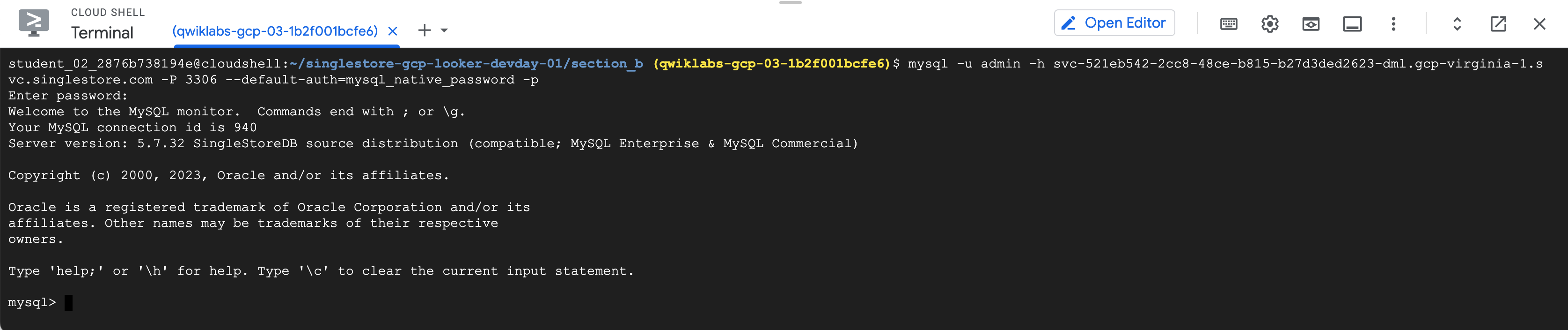
If your deployment stops responding to the mysql commands, check the workspace state in SingleStore. It is configured to pause if left idle for over 20 minutes. If that's the case, the button will show "Resume". Click on it to resume its operations. It should take a couple of minutes to come back.
Task 3. Creating Schema and interacting with SingleStore
In this section you will build the Table Schemas.
Use the following DDL to create a new database named nyc_taxi.
- At the mysql> prompt, run:
source create_nyctaxi_tables.ddl;
use nyc_taxi; show tables;
You should see similar results:
Database changed
+--------------------+
| Tables_in_nyc_taxi |
+--------------------+
| avgcost            |
| avgdist            |
| avgriders          |
| avgridetime        |
| avgwait_driver     |
| avgwait_passenger  |
| drivers            |
| nab_nyctaxi_scored |
| neighborhoods      |
| trips              |
| triptotals         |
| triptotalsc        |
+--------------------+
12 rows in set (0.05 sec)
You have created the Schema and the Database tables are listed.
- Run the following command:
select * from avgcost limit 5;
The output of this query is "Empty set" or "0", this is because you have only created the Schema and the Table is empty.
Pause here for a second. You've successfully created the SingleStore Database and connected to it. The Schema is set up but there is no data yet.
If you have extra time, feel free to poke around and explore SingleStore!
Task 4. Check out the data in lab (Optional)
In today's lab, you use the NYC Taxi data, this data can be found in BigQuery's public datasets or on the NYC Open Data website.
This data has been put in a Cloud Storage bucket for you ahead of time, so there is no need for you to download/import this into Google Cloud. You can explore the data if you so wish.
The NYC Open Data website provides free datasets related to New York City, including taxi, education, police data and more.
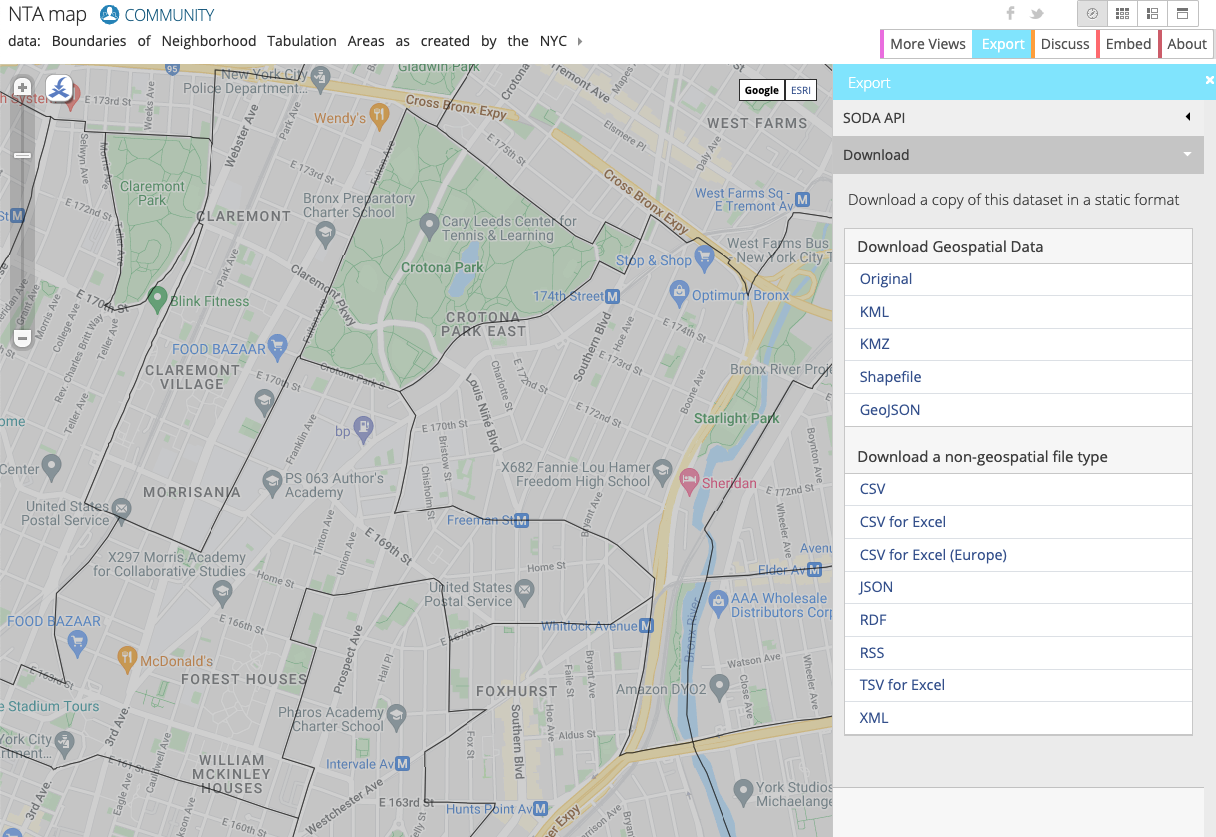
In this lab, you work with the NYC Department of City Planning's Neighborhood Tabulation Areas (NTAs) which provides information on approximate zones and neighborhoods in NYC. You use this in combination with NYC Taxi data to see where passengers were picked up and dropped off.
On the website you can visualize the data by neighborhood:
Task 5. Setup a Cloud Storage Bucket
- Before starting this section, open up a new Cloud Shell/ Terminal tab by clicking the "+" button:

In Google Cloud, the two main ways to set up resources are through the GUI and CLI. In the lab you use CLI to create the bucket and get the latest neighborhood data from NYC taxi cab website.
- Copy the below commands to create your own bucket and import the data from a public bucket into your own bucket:
gcloud storage buckets create gs://$GOOGLE_CLOUD_PROJECT --location=europe-west4

gcloud storage cp -r gs://configuring-singlestore-on-gcp/drivers gs://$GOOGLE_CLOUD_PROJECT

gcloud storage cp -r gs://configuring-singlestore-on-gcp/trips gs://$GOOGLE_CLOUD_PROJECT

gcloud storage cp gs://configuring-singlestore-on-gcp/neighborhoods.csv gs://$GOOGLE_CLOUD_PROJECT
If prompted, click Authorize.
Notice there is already another bucket created in your project. Don't worry about this bucket, it's a staging/temp storage location for Dataflow.
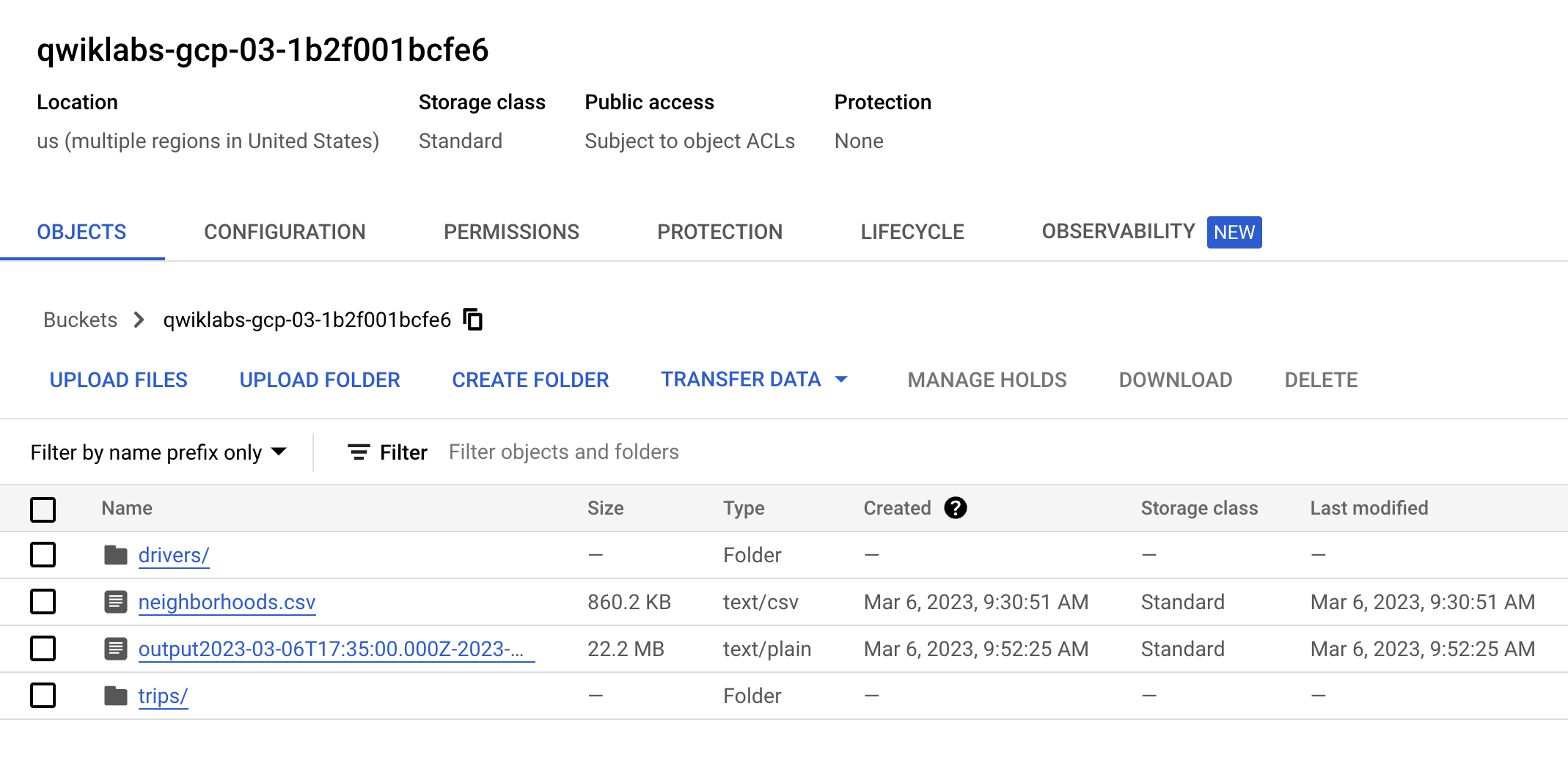
- Go to your Storage Bucket and make sure you have 2 folders and a CSV file, which should look like this:
Click Check my progress to verify the objective.
Setup the Cloud Storage Bucket
Check my progress
Task 6. Pub/Sub and Dataflow
Pub/Sub and Dataflow resources have been pre populated in your project. To check them out, use the search box on the top of your Cloud Console to find Pub/Sub and Dataflow.
- Pub/Sub:
Check that there is a Topic called "Taxi"
Subscription called "Taxi-sub"
- Dataflow:
- Check that there is a job called "GCStoPS" with status failed.
Click on the job and click clone to run this exact job. Rename it and check the job info (which you've pre populated since you cloned it) so you know what you're running. Scroll down and click Run Job.
Go back to Dataflow jobs and make sure you job has status "streaming".
Note: It can take 5-7 min for your Dataflow job to start streaming.
- Go back to Pub/Sub and go to the Taxi-sub subscription, click Messages and Pull - messages should start rolling in. This should look like:
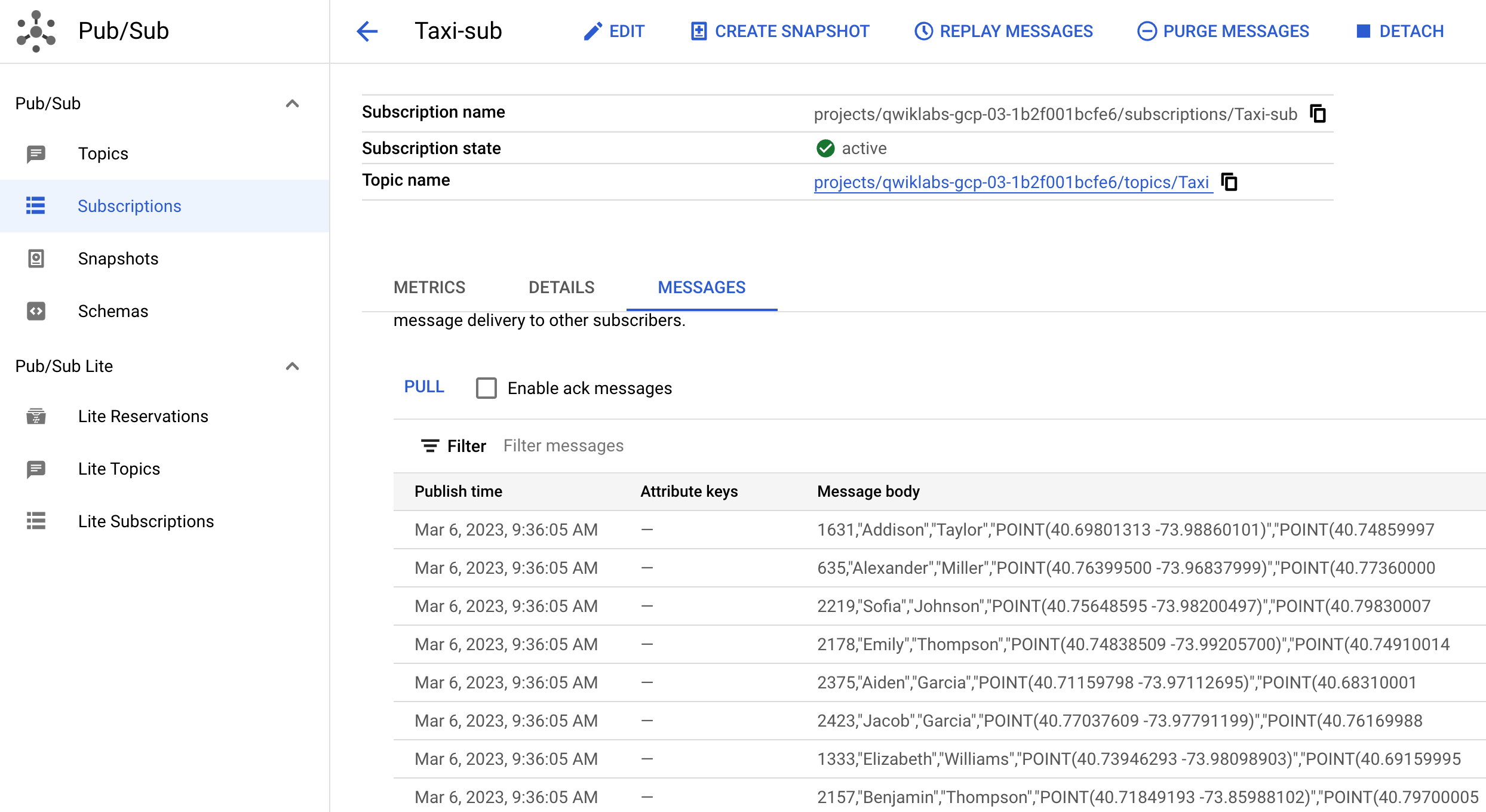
You've now simulated live data streaming! As an example, if you were to upload more data to GCS and Pull in Pub/Sub, Dataflow would be moving the data live.
Click Check my progress to verify the objective.
Clone the Dataflow Job
Check my progress
Task 7. Setting up a streaming architecture on Google Cloud
A common streaming architecture on Google Cloud consists of Pub/Sub > Dataflow > GCS. Set this up now, then plug SingleStore onto GCS.
Navigate back to Dataflow.
Click Create a job from template and name it
pstogcs(PubSub to GCS).Select the Regional endpoint: "
europe-west4"Select the following Dataflow template:
Pub/Sub Subscription or Topic to Text Files on Cloud Storage. A number of options will show up.For Target, click BROWSE and select the bucket you created earlier called "
qwiklabs-gcp-01-133535a4a5a3" (your unique project ID). You want the output of this job to land in the bucket you created earlier in the lab. Click SELECT.Leave the output filename prefix as
output. This is to mark the output files clearly.Expand Optional Source Parameters. For Pub/Sub input subscription select the "Taxi-sub" which you just saw messages coming into. No need to include input topic.
Leave the defaults for everything else, then go to the bottom of the page and click RUN JOB.
If you get an error when running the job, check if the issues are in the Custom Pattern fields for date and time. If that's the case, delete the values on all of those fields and try again.
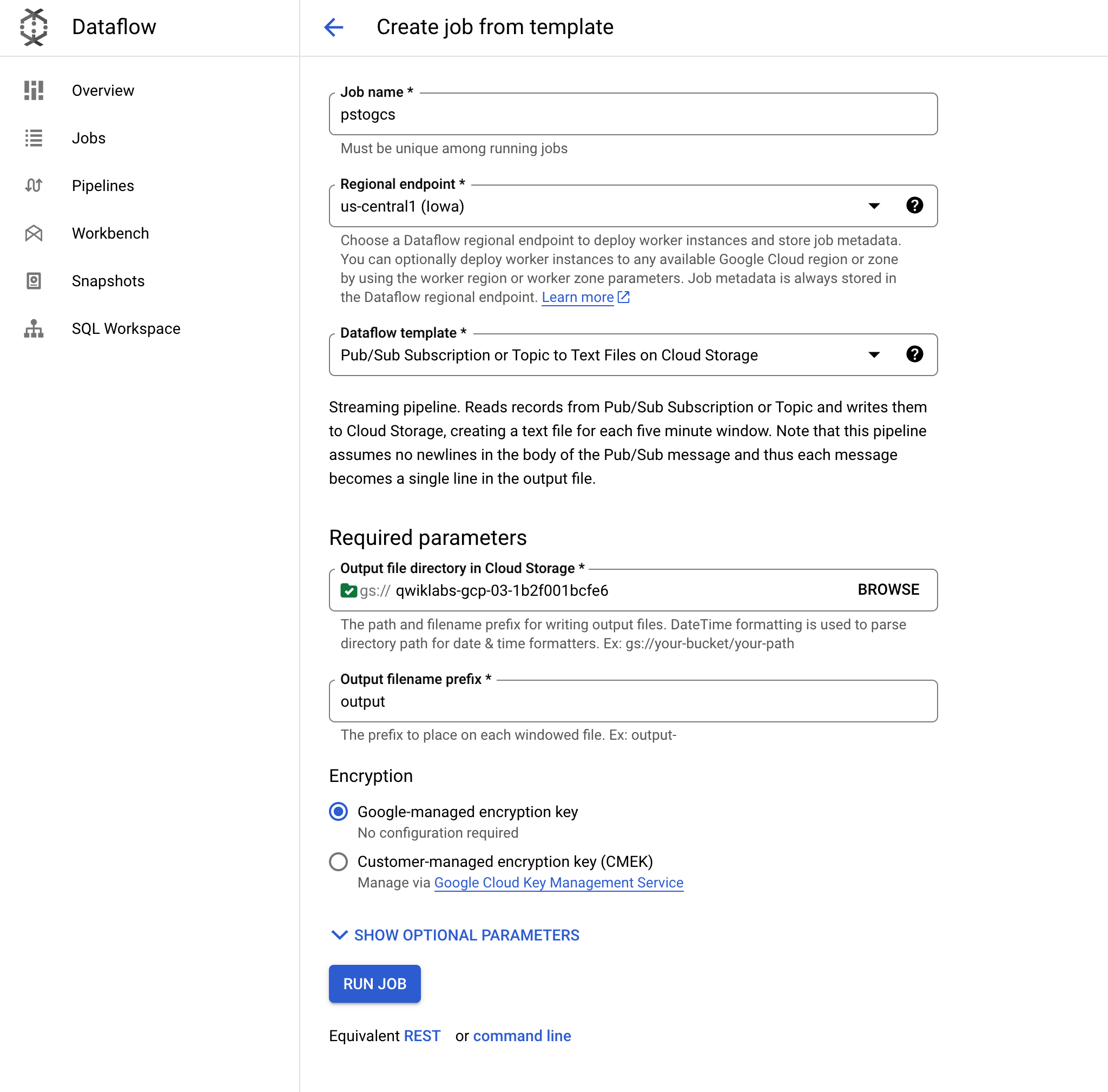
This Dataflow job should read the messages you saw earlier in Pub/Sub and Stream them into your Cloud Storage Bucket.
Note: It can take 5-7 min for your Dataflow job to start streaming.
Go to your Cloud Storage Bucket. You should see a timestamped output file in the bucket.
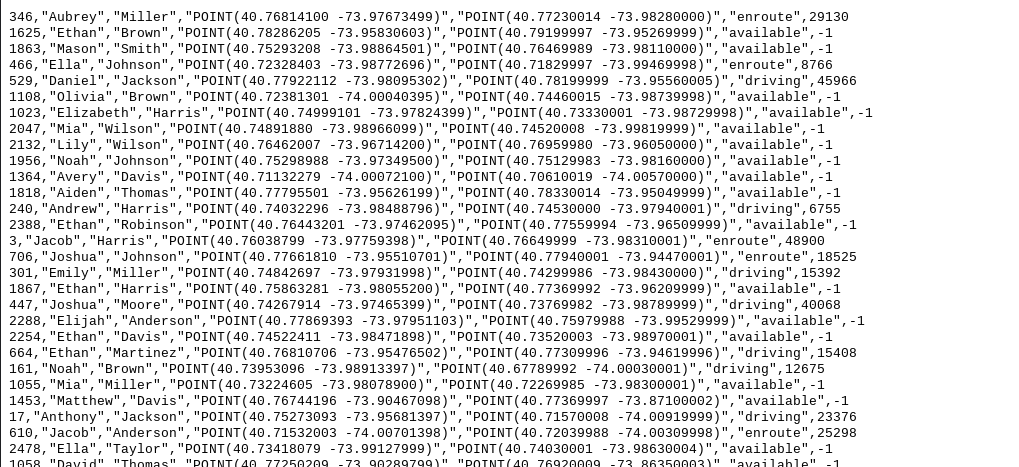
Click on the output file and select Download then you should see Taxi data that includes names, coordinates and times
Click Check my progress to verify the objective.
Setting up a streaming architecture on Google Cloud
Check my progress
Connect Cloud Storage to SingleStore
You need to create a Key to connect this private Cloud Storage Bucket to SingleStore. To do this go to Settings (third option on the left hand side of Cloud Storage):
Click the Interoperability tab. At the bottom, click Create a Key.
Now you will ingest data into SingleStore with Pipelines and start a stored procedure.
Navigate back to the Cloud Shell tab with the SingleStore Terminal open.
To create Initial SingleStore Pipelines:
From the first CloudShell tab, click Open Editor. If prompted click Open in a new window.
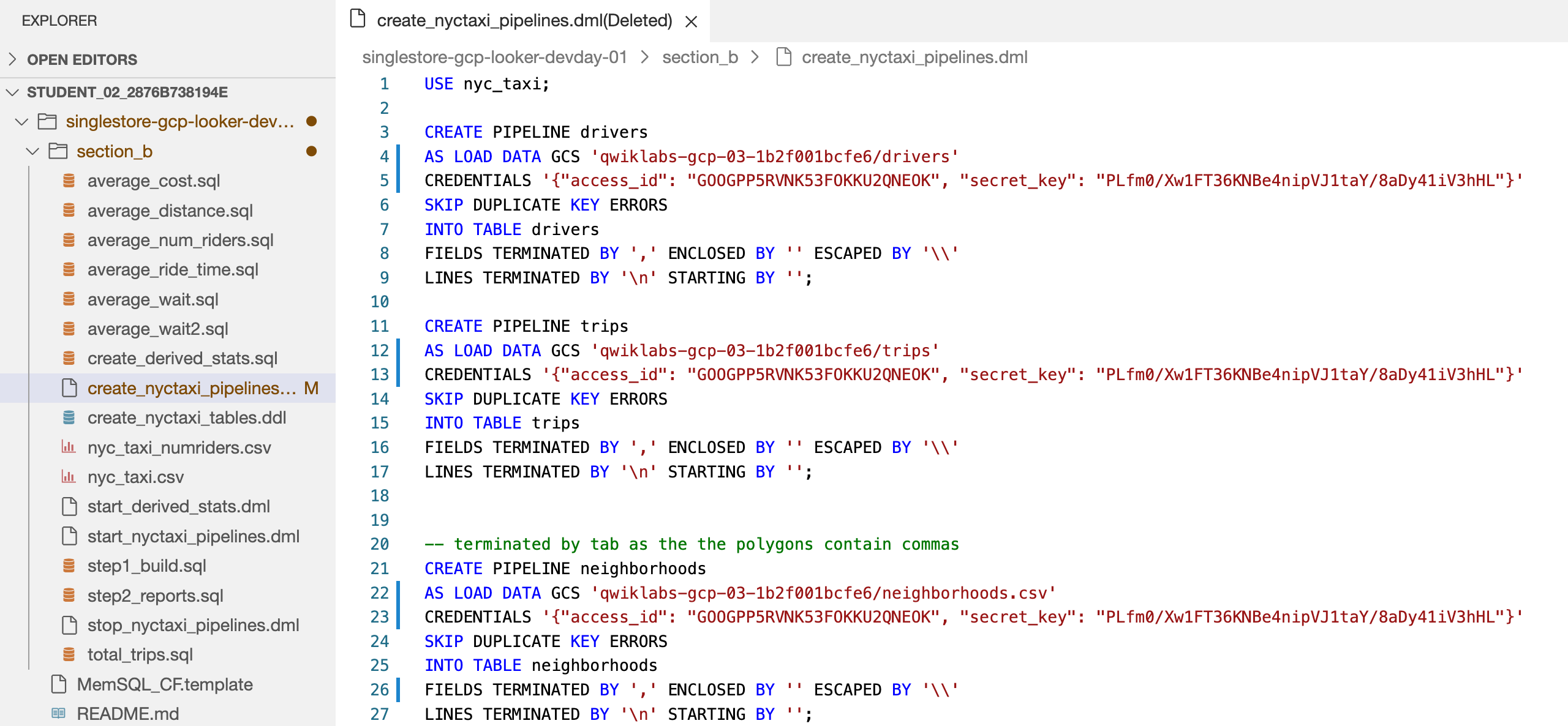
Open the singlestore-gcp-looker-devday-01 > section b > create_nyctaxi_pipelines.dml file..
- Make the following updates to the file:
On line 4, change the bucket name to your bucket name.
On line 5, add the Storage Bucket Access ID and Secret Key you just created.
On line 12, change the bucket name to your bucket name.
On line 13, add the Storage Bucket Access ID and Secret Key you just created.
On line 22, change the bucket name to your bucket name. and
.tsvto.csv.On line 23, add the Storage Bucket Access ID and Secret Key you just created.
On line 26, change
/tto,.
Your file should resemble the following:
Click Save and go back to the Terminal.
From the Cloud Shell Terminal, connect to SingleStore using the MySQL command you used earlier. You can use the same command you used earlier to connect to SingleStore.
At the MySQL prompt, run the following command to create the pipelines:
source create_nyctaxi_pipelines.dml;
show pipelines;
The output should look like:
| Pipelines_in_nyc_taxi | State | Scheduled |
| neighborhoods | Stopped | False |
| drivers | Stopped | False |
| trips | Stopped | False |
Task 8. Start Pipelines
- Run the following commands to start the pipelines:
source start_nyctaxi_pipelines.dml;
show pipelines;
Output:
| Pipelines_in_nyc_taxi | State | Scheduled |
| neighborhoods | Running | False |
| drivers | Running | False |
| trips | Running | False |
- Make sure the Pipeline status for all three is Running.
Task 9. Run Operational Analytic Queries
- Run the following commands to run the operational analytic queries:
select * from trips limit 5;
select * from drivers limit 5;
select * from neighborhoods limit 5;

Report 1: Total number of trips for each neighborhood.
- Then, run:
source total_trips.sql;
Report 2: The average amount of time between someone requesting a ride and that person being picked up.
- Next. run:
source average_wait.sql;
Report 3: The average distance of a trip.
- Run:
source average_distance.sql;
Report 4: The average amount of time between someone being picked up and that person being dropped off.
- Run:
source average_ride_time.sql;
Report 5: The average cost of a trip.
- Run:
source average_cost.sql;
Report 6: The average amount of time it takes from the time a driver accepts a ride to the time they pick up the passenger.
- Run:
source average_wait2.sql;
Report 7: The average number of riders per trip.
- Run:
source average_num_riders.sql;
Solution of Lab
Quick
curl -LO raw.githubusercontent.com/ePlus-DEV/storage/refs/heads/main/labs/GSP1096/lab.sh
source lab.sh
Script Alternative
curl -LO raw.githubusercontent.com/QUICK-GCP-LAB/2-Minutes-Labs-Solutions/refs/heads/main/SingleStore%20on%20Google%20Cloud/gsp1096.sh
sudo chmod +x *.sh
./*.sh
Manual






