Datastore: Qwik Start - GSP131

A passionate full-stack developer from @ePlus.DEV
Overview
In this lab, you learn how to store and query data in Datastore using the Google Cloud console.
Setup and requirements
Before you click the Start Lab button
Read these instructions. Labs are timed and you cannot pause them. The timer, which starts when you click Start Lab, shows how long Google Cloud resources are made available to you.
This hands-on lab lets you do the lab activities in a real cloud environment, not in a simulation or demo environment. It does so by giving you new, temporary credentials you use to sign in and access Google Cloud for the duration of the lab.
To complete this lab, you need:
- Access to a standard internet browser (Chrome browser recommended).
Note: Use an Incognito (recommended) or private browser window to run this lab. This prevents conflicts between your personal account and the student account, which may cause extra charges incurred to your personal account.
- Time to complete the lab—remember, once you start, you cannot pause a lab.
Note: Use only the student account for this lab. If you use a different Google Cloud account, you may incur charges to that account.
How to start your lab and sign in to the Google Cloud console
Click the Start Lab button. If you need to pay for the lab, a dialog opens for you to select your payment method. On the left is the Lab Details pane with the following:
The Open Google Cloud console button
Time remaining
The temporary credentials that you must use for this lab
Other information, if needed, to step through this lab
Click Open Google Cloud console (or right-click and select Open Link in Incognito Window if you are running the Chrome browser).
The lab spins up resources, and then opens another tab that shows the Sign in page.
Tip: Arrange the tabs in separate windows, side-by-side.
Note: If you see the Choose an account dialog, click Use Another Account.
If necessary, copy the Username below and paste it into the Sign in dialog.
student-04-f2e8937ede91@qwiklabs.netYou can also find the Username in the Lab Details pane.
Click Next.
Copy the Password below and paste it into the Welcome dialog.
5RsfSh8EYF2RYou can also find the Password in the Lab Details pane.
Click Next.
Important: You must use the credentials the lab provides you. Do not use your Google Cloud account credentials.
Note: Using your own Google Cloud account for this lab may incur extra charges.
Click through the subsequent pages:
Accept the terms and conditions.
Do not add recovery options or two-factor authentication (because this is a temporary account).
Do not sign up for free trials.
After a few moments, the Google Cloud console opens in this tab.
Note: To access Google Cloud products and services, click the Navigation menu or type the service or product name in the Search field.

Task 1. Store data
In left menu on the Console, Navigate to Databases section, go to Datastore > +CREATE A FIRESTORE DATABASE.
In the Configuration options, select Firestore with Datastore compatibility.
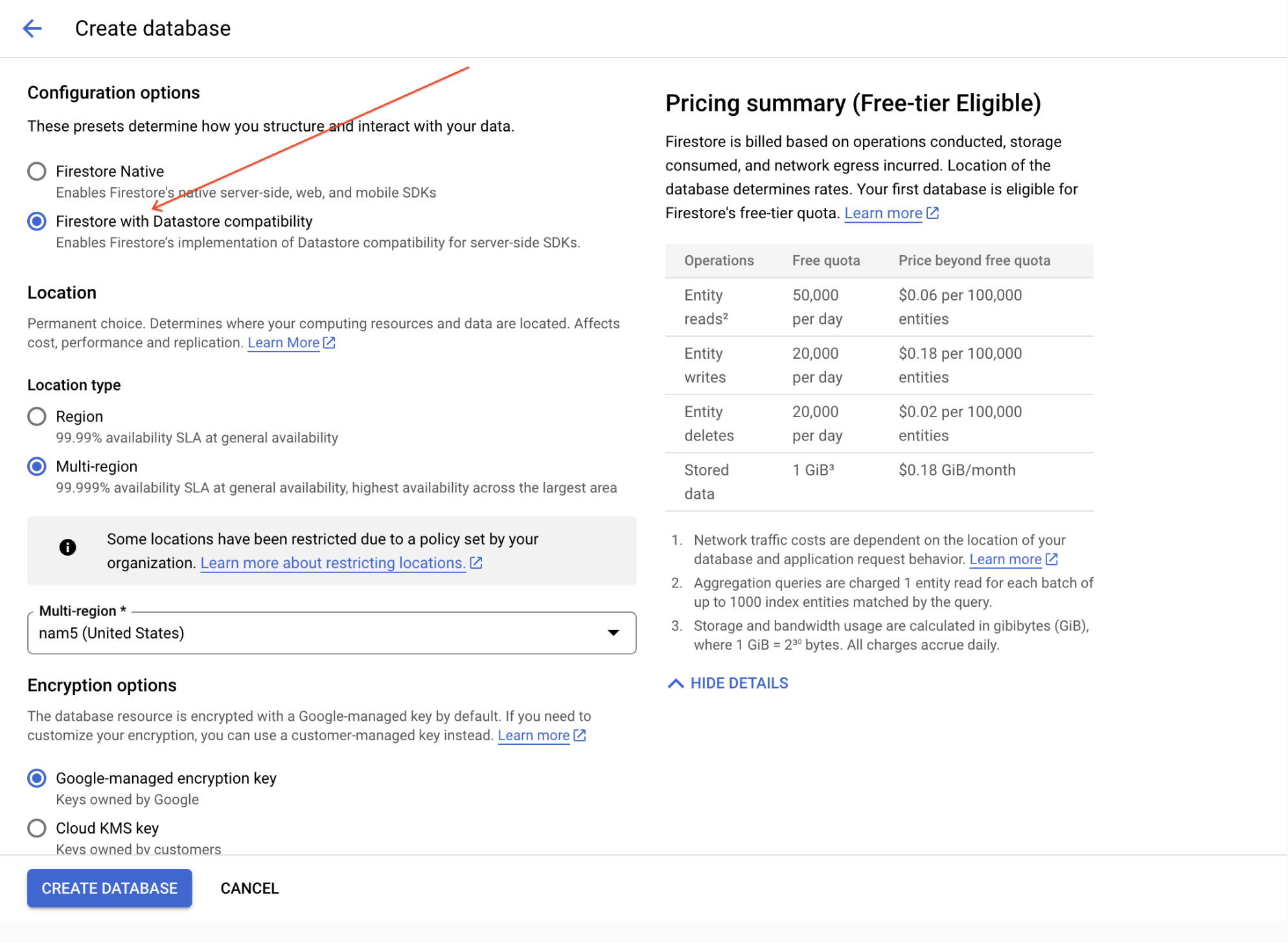
- Now choose where you'll create your database. Use the dropdown menu to select a location:
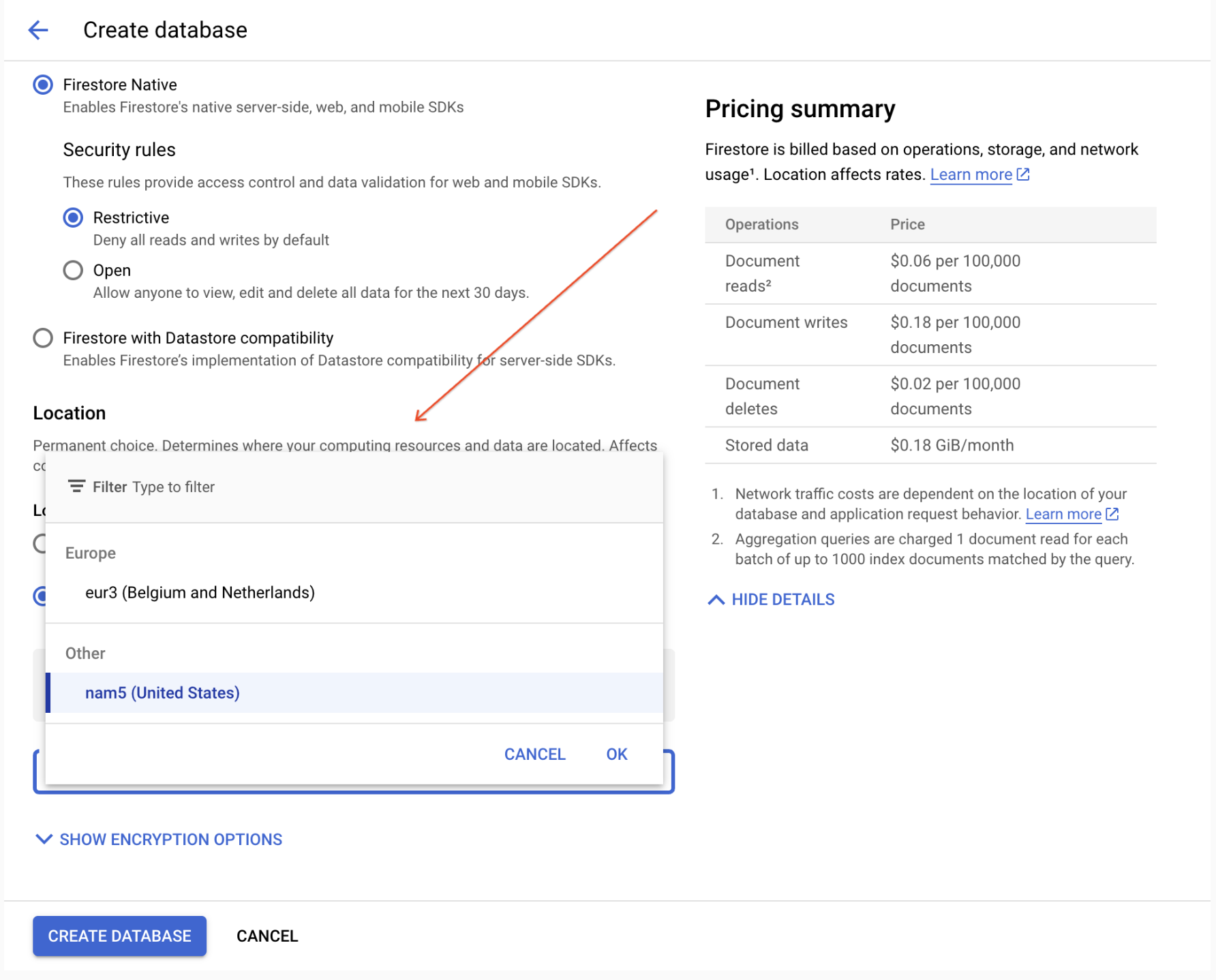
The location applies to both Cloud Datastore and App Engine for your Google Cloud project. You cannot change the location after it has been saved.
Click CREATE DATABASE.
Click +Create Entity.
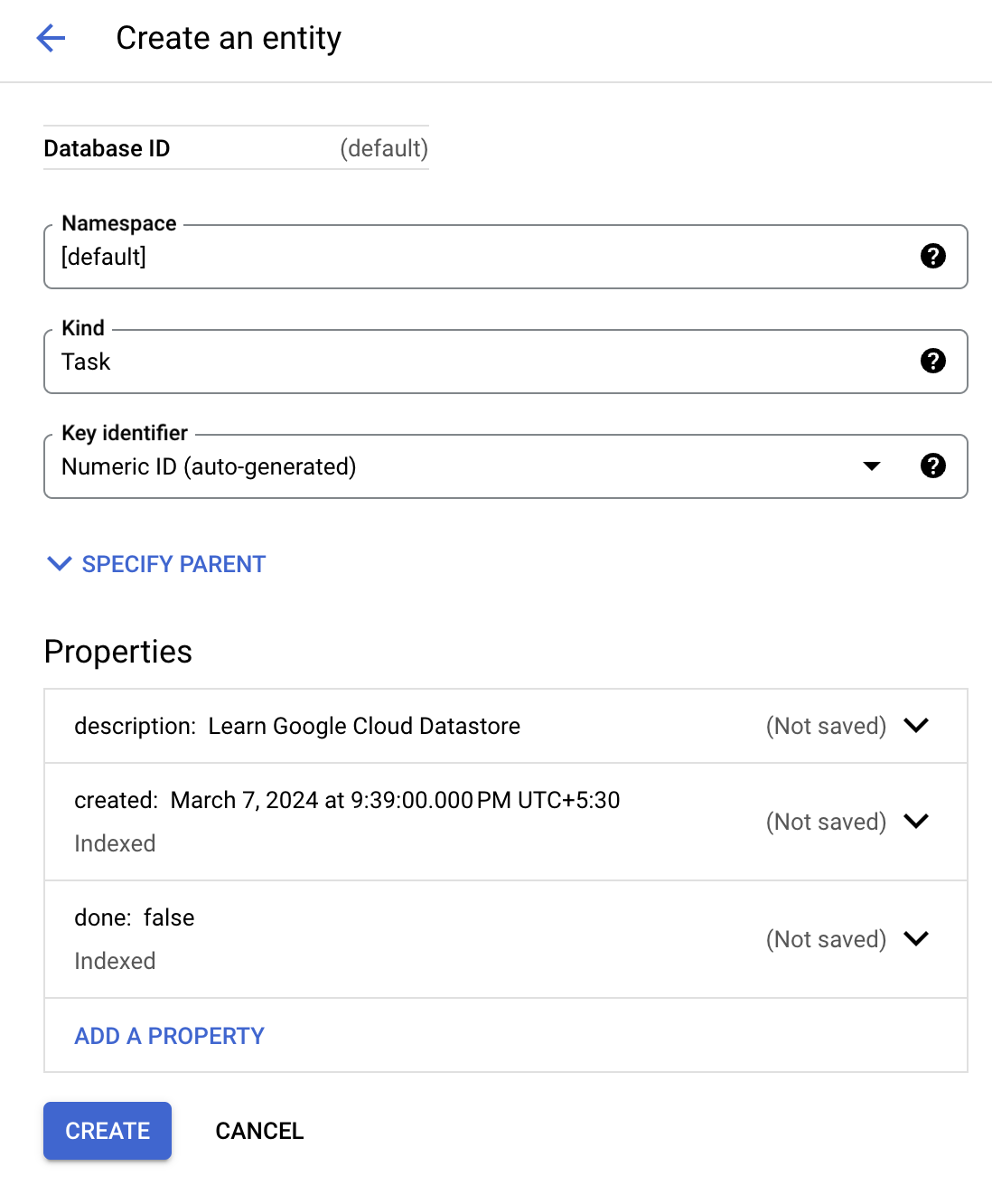
On the Create an entity page, use
[default]for Namespace.Type
Taskfor Kind.Under Properties use the Add property button to add these properties, and click Done after each one:
| Name | Type | Value | Indexed |
|---|---|---|---|
| description | String | Learn Google Cloud Datastore | ✕ |
| created | Date and time | (today's date) | ✓ |
| done | Boolean | False | ✓ |
Your creation page should now look like this:
- Click Create. The console displays the Task entity that you just created.
You just stored data in Cloud Datastore!
Test completed task
Click Check my progress to verify your performed task. If you have completed the task successfully you will granted with an assessment score.
Create Entity.
Check my progress
Task 2. Run a query
Cloud Datastore supports querying data by kind or by Google Query Language (GQL); the instructions below walk you through the steps of doing both.
Run kind queries
Click Query by kind.
Select
Taskas the kind.
The query results show the Task entity that you created.
- Next, add a query filter to restrict the results to entities that meet specific criteria:
Click ADD TO QUERY dropdown.
In the dropdown lists, select
WHERE, done, == (Equal to), Boolean and false.Click Run.
The results show the
Taskentity that you created, since itsdonevalue isfalse.
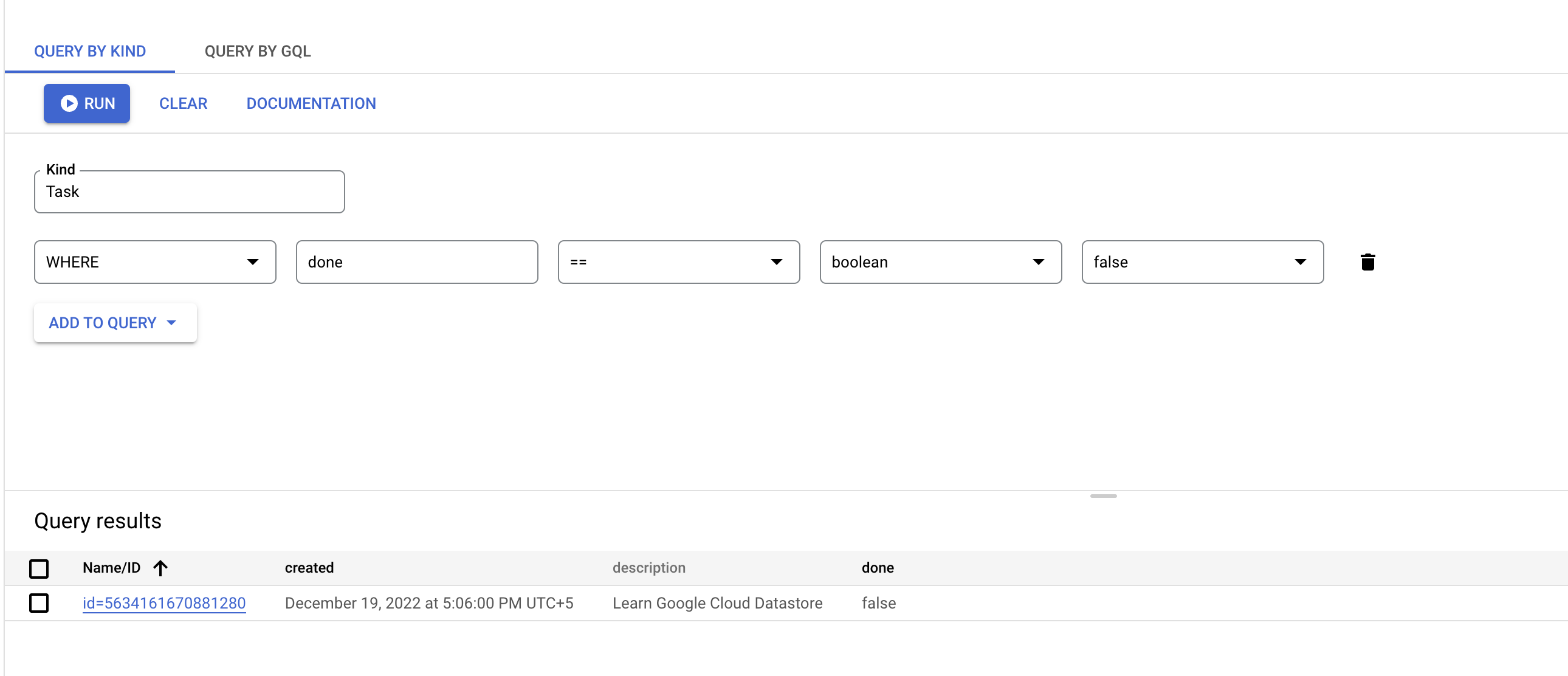
- Now try a query of
WHERE, done, == (Equal to), Boolean and true. The results do not include theTaskentity that you created, because itsdonevalue is nottrue.
Run GQL queries
Click the Query by GQL tab.
In the query box add the following:
SELECT * FROM Task
Note: Task is case sensitive.
- Click Run query.
The query results show the Task entity that you created.
Note: The GQL query editor supports autocompletion for kinds. When you need to type a kind name, press Ctrl+Space to see a list of the available kinds. Up to 300 alphabetically sorted kinds can appear in the list. For better matches of kinds, type one or more characters.
- Now add a query filter to restrict the results to entities that meet specific criteria.
Run this query:
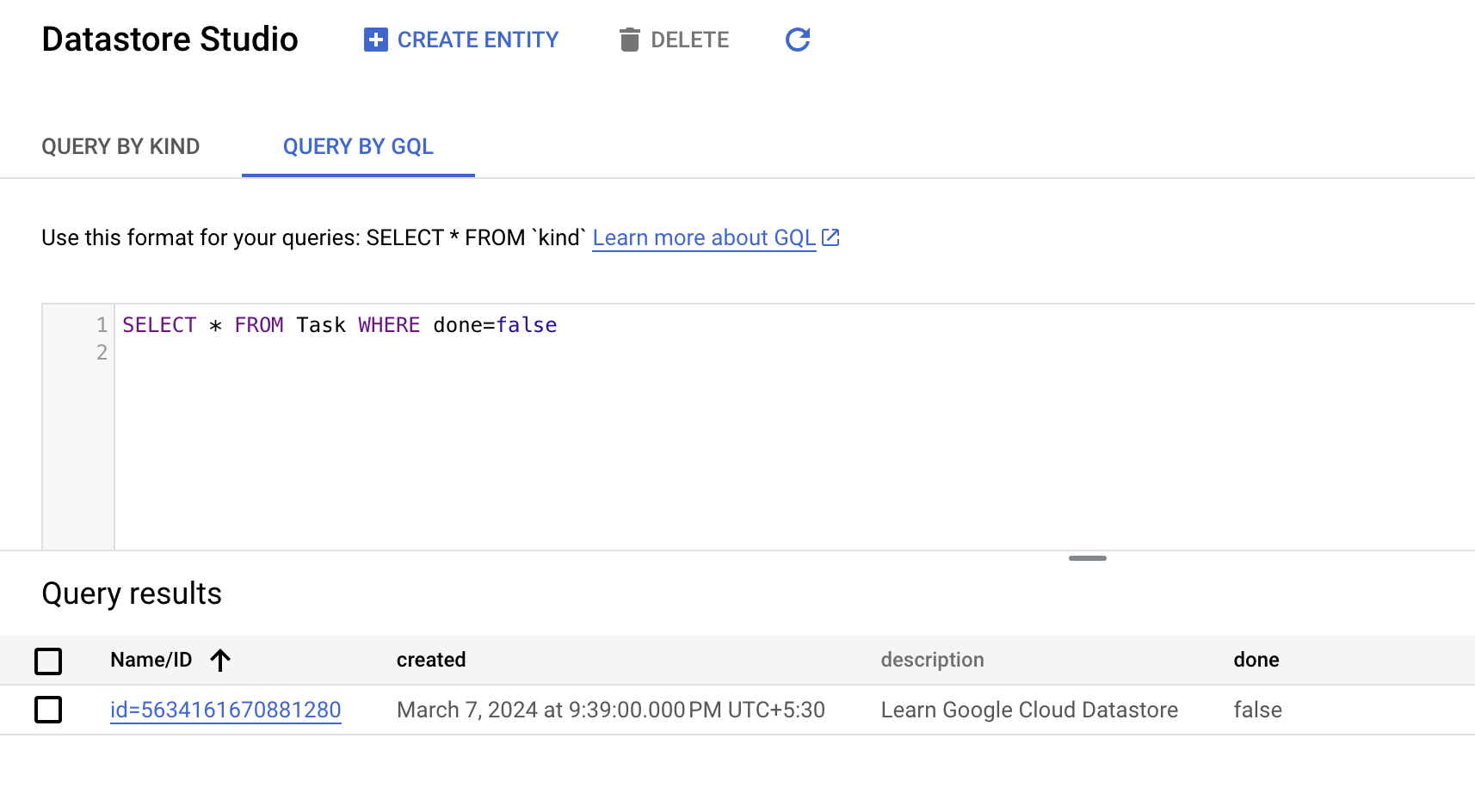
SELECT * FROM Task WHERE done=false
Note: Task and done are case sensitive.
The results show the Task entity that you created, since its done value is false.
- Now run this query:
SELECT * FROM Task WHERE done=true
The results do not include the Task entity that you created, because its done value is not true.
Task 3. Test your understanding
Below are multiple-choice questions to reinforce your understanding of this lab's concepts. Answer them to the best of your abilities.
Google Cloud Datastore is a NoSQL document database built for automatic scaling, high performance, and ease of application development.TrueFalse
Cloud Datastore is a relational database, and it is an effective storage solution for analytic data.TrueFalse
Solution of Lab
https://www.youtube.com/watch?v=5sHkpND_iNs
```apache curl -LO raw.githubusercontent.com/ePlus-DEV/storage/refs/heads/main/labs/GSP131/lab.sh source lab.sh ```Script Alternative
curl -LO https://raw.githubusercontent.com/Itsabhishek7py/GoogleCloudSkillsboost/refs/heads/main/Datastore%3A%20Qwik%20Start/abhishek.sh
sudo chmod +x abhishek.sh
./abhishek.sh